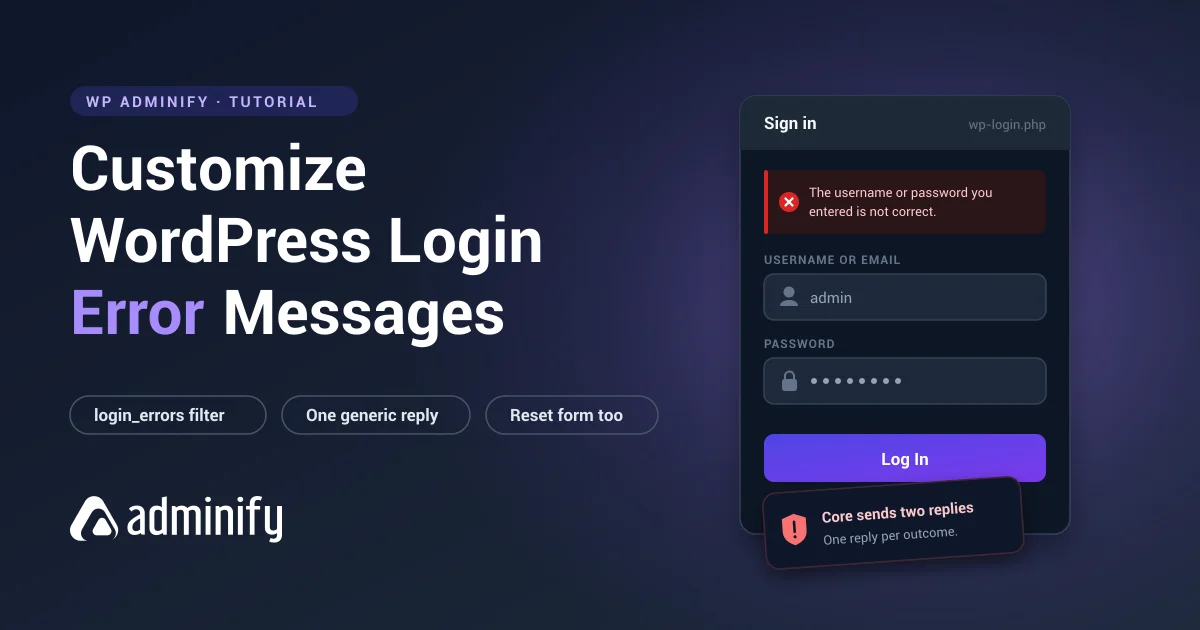
Type a username that does not exist into a WordPress login form and it tells you so. Type one that does exist with the wrong password and it tells you that instead.
That difference is a security problem, not a design one. It is called username enumeration, and the login form is only one of the doors WordPress leaves open on it: the REST API hands over every author username to anyone who asks, without touching the login page at all. This article covers the login form itself, in code and through the customizer. If you are here because you are redesigning the login screen and the error box looks wrong on your new background, how to customize the WordPress login page covers the rest of that panel; the styling snippet for the error box is near the end of this page.
What the default messages give away
An attacker running a password-guessing script does not start by guessing passwords. They start by finding out which usernames exist, because guessing passwords for accounts that are not there is wasted work.
WordPress hands that over for free. Feed it a list of a thousand likely usernames, and the wording of the response sorts them into real and not real. From there the attacker only guesses passwords for accounts they already know exist.
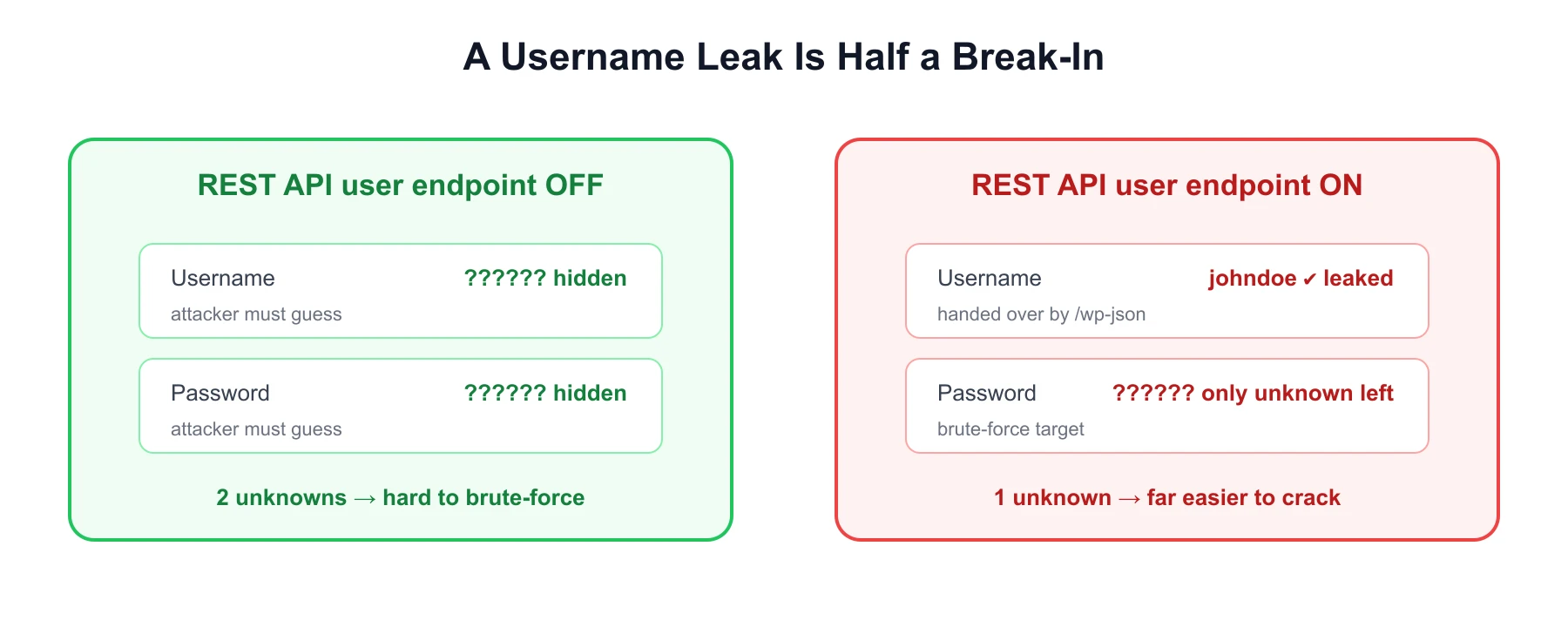
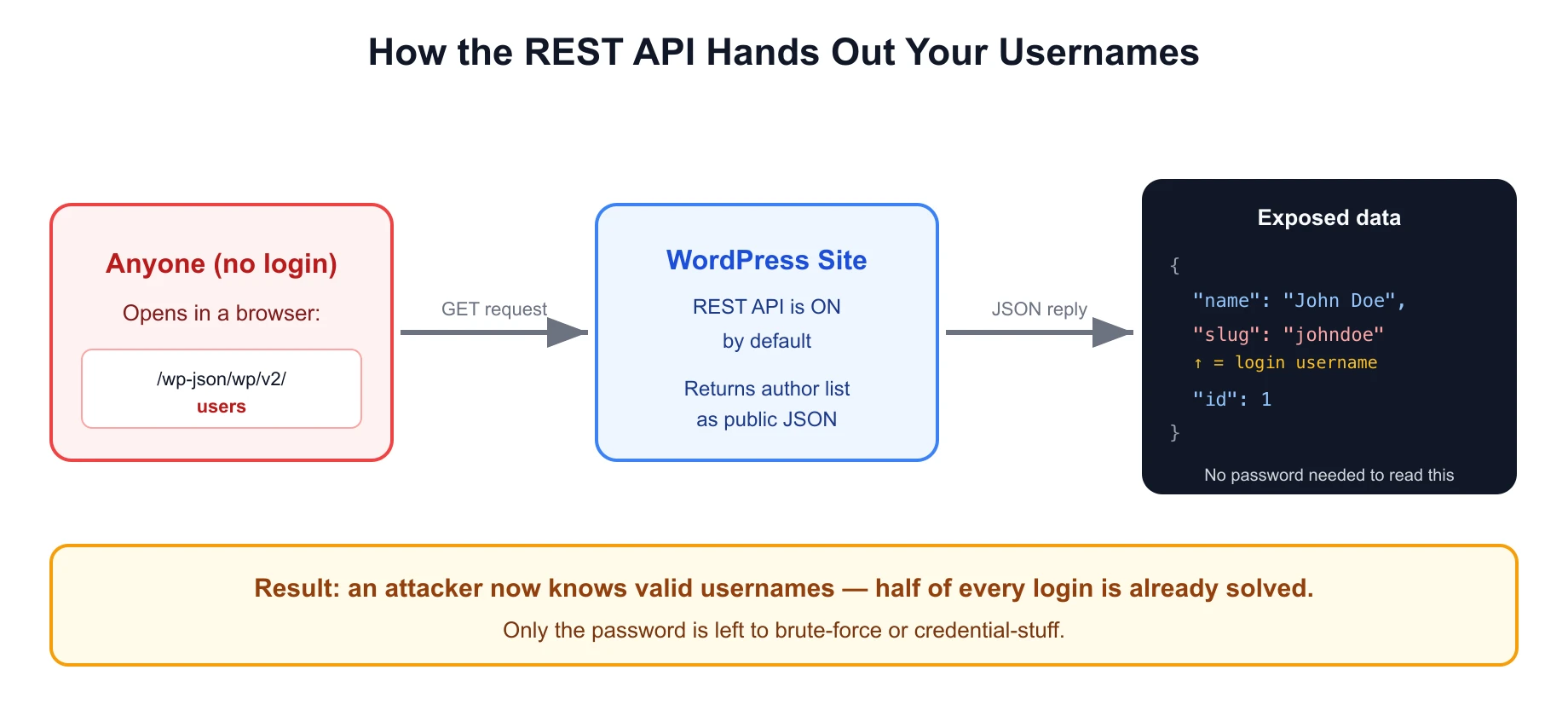
Fix both, or fix neither. A generic login error next to an open /wp-json/wp/v2/users endpoint is a lock on one of two doors. If the username itself is the problem rather than the message, changing a WordPress username covers the five ways to do it without losing the account’s content.
What the attack actually looks like
It is worth seeing the shape of it, because the abstract version (“errors leak information”) does not convey how cheap the attack is.
An attacker does not use a browser. They post directly to wp-login.php with a username and a throwaway password, and read the response body. No JavaScript runs, no rate limit applies unless you installed one, and a single request takes a fraction of a second.
Run that against a wordlist of a few thousand common usernames, plus anything scraped from the site’s author archives and comment sections, and the response text sorts the list. What comes out the other end is a verified account list. Only then does password guessing begin, now aimed exclusively at accounts that exist.
The reason this matters more than it used to is credential stuffing. Attackers are not usually guessing passwords at random; they are replaying username and password pairs leaked from breaches elsewhere. A confirmed username on your site turns a generic breach dump into a targeted attempt. If you want to see whether this is happening to you right now rather than in theory, an activity log will show it: monitoring user activity in WordPress covers the setup.
Do not forget the other login forms
Sites rarely have exactly one login form, and the login_errors filter only covers the core one at wp-login.php.
WooCommerce. The My Account page has its own login form with its own error strings, filtered through woocommerce_login_failed and WooCommerce’s own notice system. Locking down wp-login.php and leaving /my-account/ open moves the leak to the busier door.
Front-end forms built with wp_login_form(). These post to wp-login.php, so login_errors does apply. Check it on your own build rather than assuming; how to create a custom WordPress login form has the working implementation these are usually based on.
Membership and LMS plugins. Most ship their own login and registration templates with their own messages. Test each one by hand: enter a username you know does not exist, then a real one with a wrong password, and compare the two responses word for word.
Multisite. Each site in the network uses the same core login handler, so an mu-plugin fixes the whole network at once. That is a good argument for the mu-plugin route over a per-theme snippet.
The test is always the same and takes two minutes per form. If the two failures read differently, the leak is open.
The one-line fix
WordPress passes every login error through the login_errors filter before displaying it. Return a fixed string and every failure looks identical:
add_filter( 'login_errors', function () {
    return 'The username or password you entered is not correct.';
} );
Put that in your child theme’s functions.php or in a must-use plugin at wp-content/mu-plugins/. That is the whole fix for the login form.
Now every failed attempt returns the same sentence whether the account exists or not, and the enumeration attack against the login form stops working. If you are not sure where snippets like this belong, or you want the rest of the login screen handled the same way, customizing the WordPress login page without a plugin explains the child-theme and mu-plugin setup properly.
Doing it without code
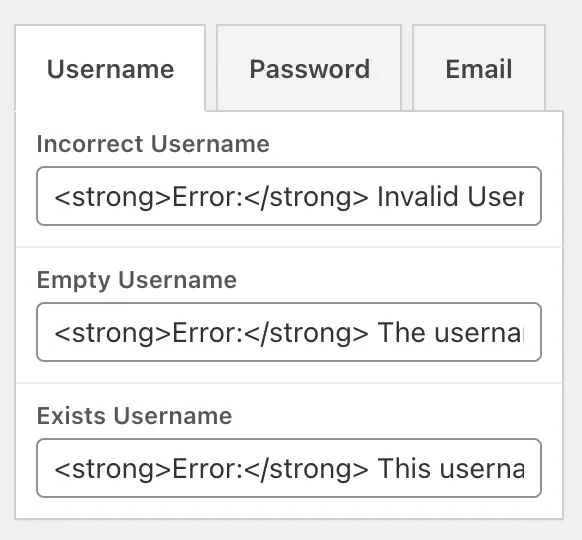
Most login customizers expose the error strings as editable fields, which puts the same fix in reach of anyone who does not want to edit PHP on a client site.
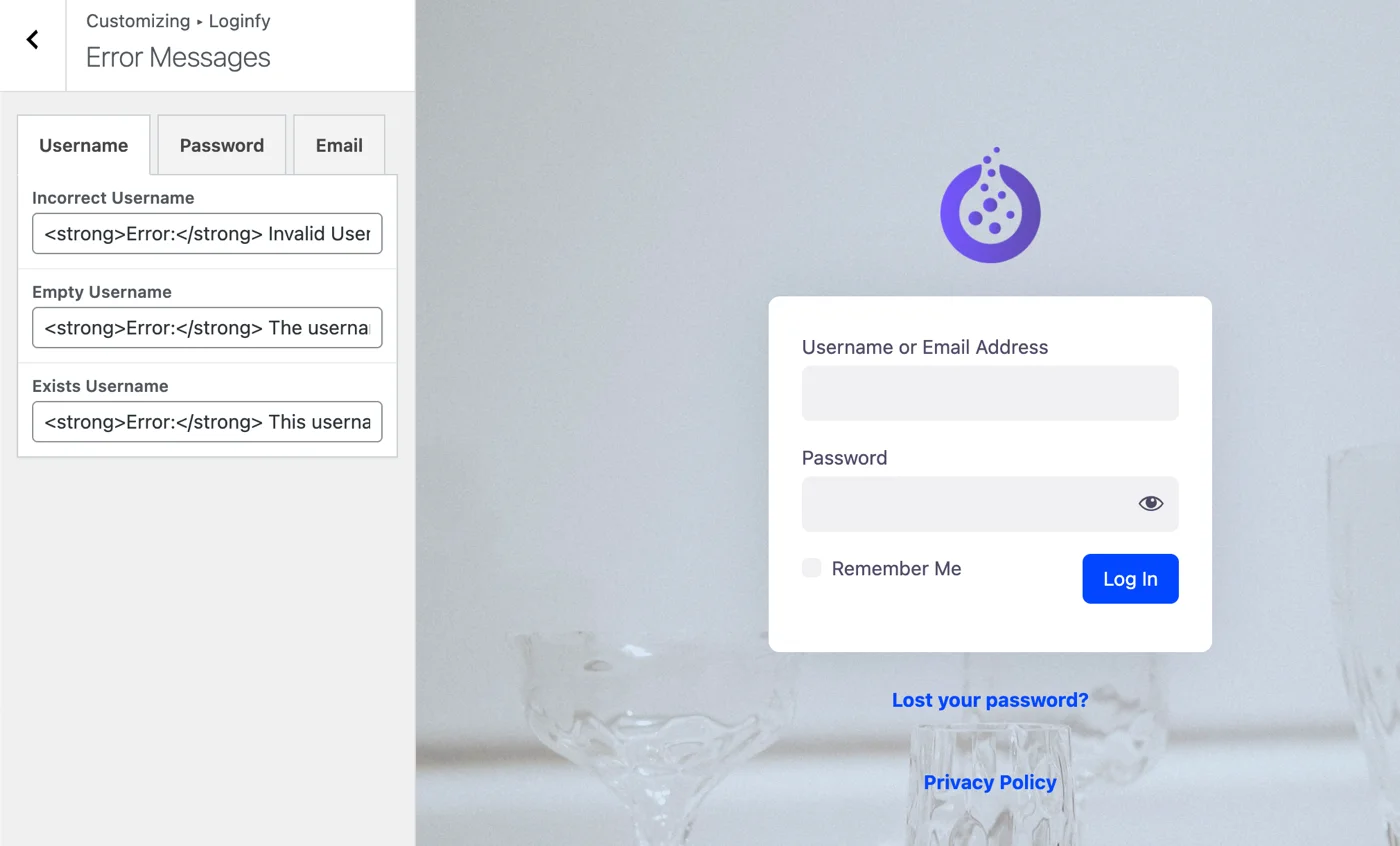
Being able to rewrite them counts for nothing on its own. What matters is setting every one of them to the same text. An interface that lets you write a friendlier “we do not recognise that username” is offering you a nicer-sounding version of the same leak. Both Loginfy and LoginPress expose this section on their free tiers; the 8 best WordPress login plugins for 2026 notes which of the others do.
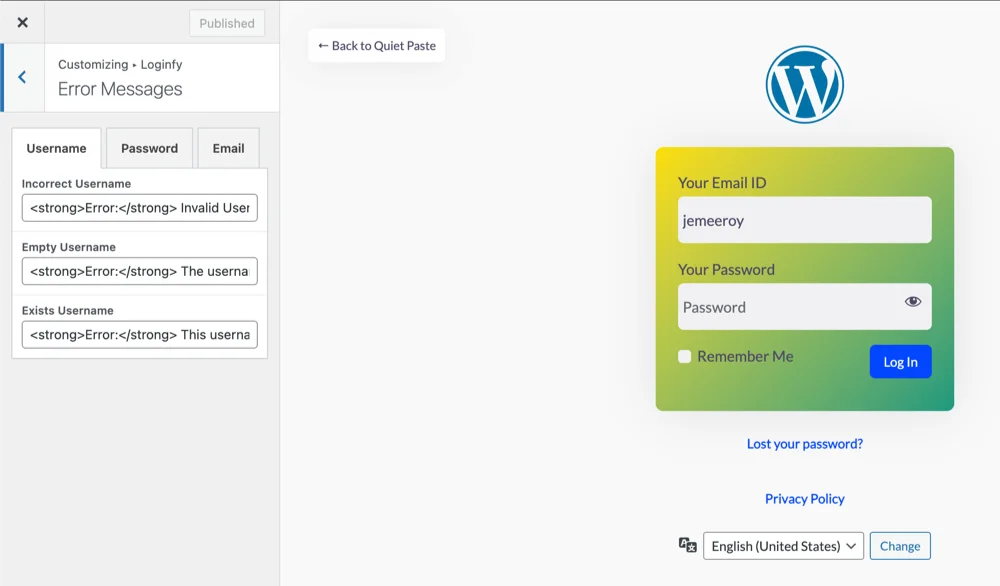
The messages worth rewriting, one by one
Unknown username
Core says the username is not registered and offers to let you register. Replace it with the generic message. If you only change one string on this page, change this one.
Incorrect password
Core confirms the username is valid and only the password is wrong, and includes a “Lost your password?” link that names the account. Replace with the same generic message.
Empty username or password
“The username field is empty” leaks nothing, so you can leave it. It is worth rewriting anyway for tone, because “Please enter your email address” is friendlier than “ERROR: The username field is empty.”
Unknown email on password reset
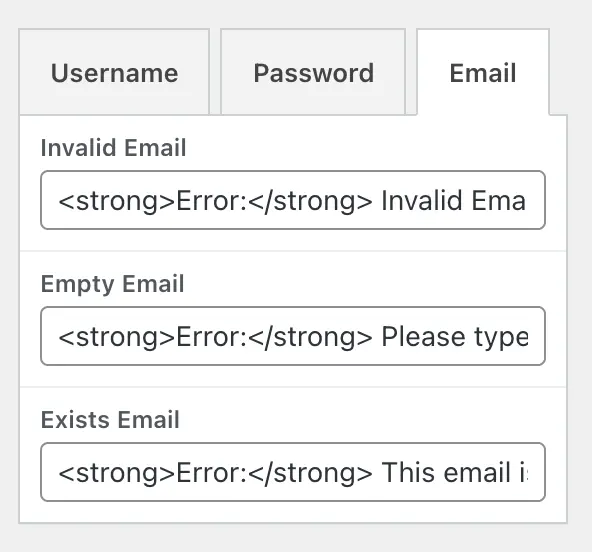
This one is easy to miss. Closing the login form and leaving the reset form open moves the leak rather than fixing it. The wording to copy is the one you have seen on better-built services: always say “If that address is registered, we have sent a reset link,” whether or not it is.
add_filter( 'login_errors', function ( $error ) {

    if ( isset( $_GET['action'] ) && 'lostpassword' === $_GET['action'] ) {
        return 'If that address is registered, we have sent a reset link.';
    }

    return 'The username or password you entered is not correct.';
} );
The reset flow itself, including what to do when the reset email never arrives, is in resetting a WordPress admin password without email.
What generic errors cost you
There is a real cost to this, and it is worth naming before you ship it.
A user who mistyped their email now cannot tell that from having mistyped their password. On a site with tens of thousands of members, that produces support tickets. On a site with fifteen staff accounts, it produces almost none.
Three ways to soften it without reopening the leak:
- Write a message that suggests the next step. “The username or password you entered is not correct. Check both, or reset your password.” Same information, more useful.
- Keep the reset link visible. Hiding “Lost your password?” to look tidy is the change that actually creates support load.
- Make the field label unambiguous. If the site accepts email only, label the field “Email.” A good share of mistyped-credential tickets are really people guessing what the field wanted from them.
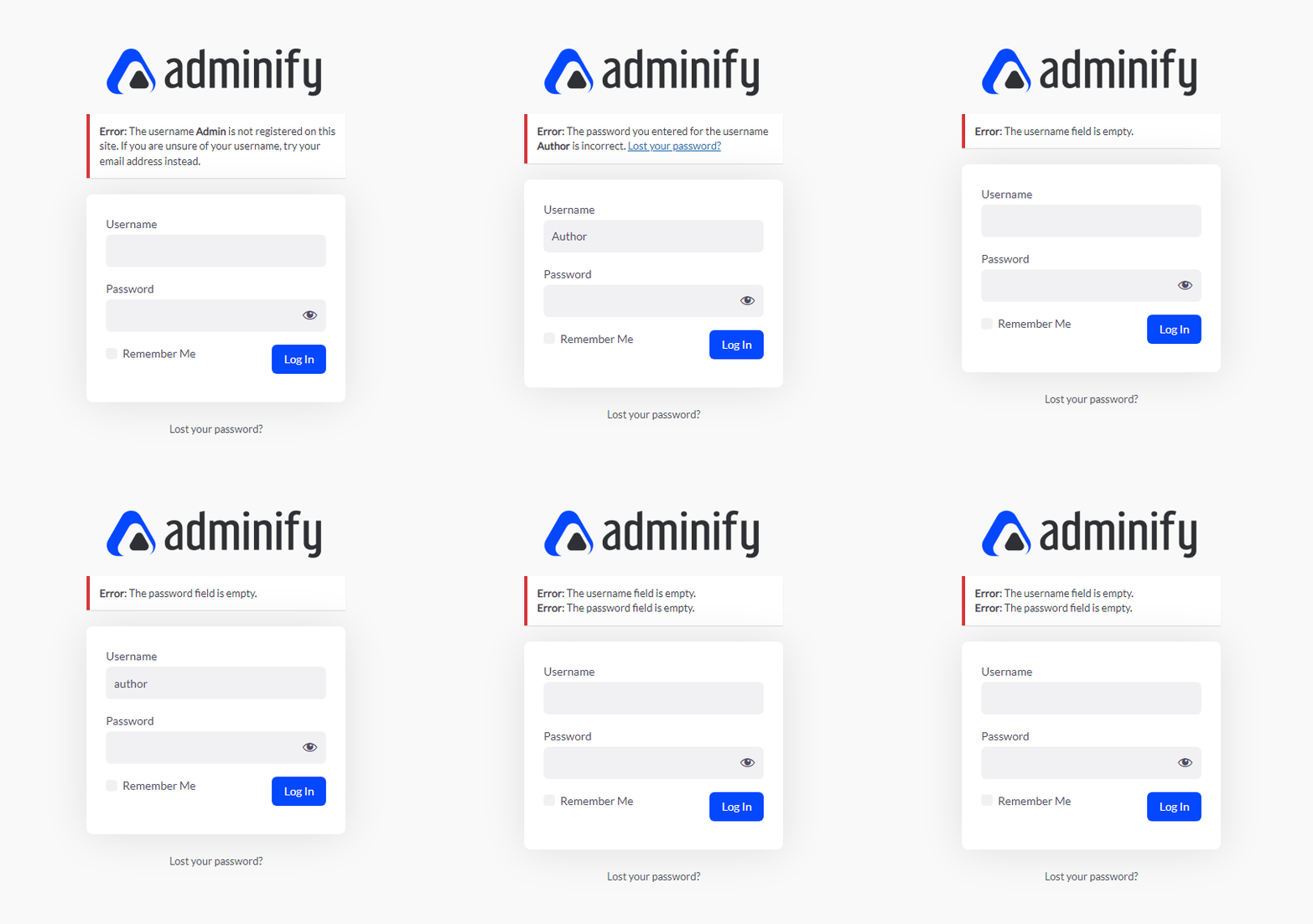
Rewriting for tone as well as security
Once every message is generic, the remaining question is how it reads. Core’s default voice is a system log entry, uppercase “ERROR:” and all.
A better default:
add_filter( 'login_errors', function () {
    return 'That did not work. Check your email and password, or reset your password below.';
} );
Two other touches worth knowing about.
The shake. WordPress shakes the login form on failure. Some people read it as playful, some as an accusation. Most login customizers have a “Disable login shake” toggle, free on Loginfy 1.0.5. To do it in code:
add_action( 'login_head', function () {
    remove_action( 'login_footer', 'wp_shake_js', 12 );
} );
The error box styling. The default red-bordered box is fine, but if the rest of the page is designed and this is not, it stands out for the wrong reason:
.login #login_error {
    background: #fef2f2;
    border-left: 4px solid #dc2626;
    border-radius: 8px;
    box-shadow: none;
    color: #7f1d1d;
    padding: 12px 16px;
}
A complete implementation
Everything above in one mu-plugin. Save as wp-content/mu-plugins/login-messages.php:
<?php
/**
 * Plugin Name: Login Messages
 * Description: Generic login errors and a friendlier reset flow.
 */

add_filter( 'login_errors', 'mysite_generic_login_errors' );
function mysite_generic_login_errors( $error ) {

    $action = isset( $_GET['action'] ) ? sanitize_key( $_GET['action'] ) : '';

    if ( 'lostpassword' === $action ) {
        return 'If that address is registered, we have sent a reset link.';
    }

    return 'That did not work. Check your email and password, or reset your password below.';
}

// Do not confirm whether an account exists on password reset either.
add_filter( 'login_message', 'mysite_reset_confirmation', 10, 1 );
function mysite_reset_confirmation( $message ) {

    if ( isset( $_GET['checkemail'] ) && 'confirm' === $_GET['checkemail'] ) {
        return '<p class="message">If that address is registered, we have sent a reset link.</p>';
    }

    return $message;
}

// Remove the shake on failure.
add_action( 'login_head', function () {
    remove_action( 'login_footer', 'wp_shake_js', 12 );
} );
Roughly thirty lines, no plugin dependency, and it survives theme changes because it is an mu-plugin rather than theme code.
What this does not fix
Being clear about the limits, because generic errors are often oversold:
It does not stop brute force attacks. An attacker can still guess passwords. They just cannot pre-filter the username list from the login form. Rate limiting is what stops the guessing, and that is a separate tool. So is two-factor authentication, which is the one measure that still holds when a password has already leaked.
It does not close the other enumeration routes. The REST API users endpoint, author archives at /?author=1, and comment author names all leak usernames independently of the login form.
It does not hide the login page. Every bot on the internet knows where wp-login.php is. Moving it is a separate decision with its own trade-offs, weighed in how to change your WordPress login page URL.
Frequently asked questions
Next steps
Two follow-ups, in order of value. Close the other enumeration routes first: how the WordPress REST API leaks your usernames. Then turn on the measure that survives a leaked credential: two-factor authentication for WordPress admin.
If you are editing these messages inside a customizer rather than in code, the rest of that panel is covered in how to customize the WordPress login page, and the full reference, from logo through to client handover, is the WordPress login page white-label guide.