You can restyle the WordPress login page completely with about forty lines of CSS and a handful of PHP hooks. Nothing gets installed, nothing gets written to the database, and there is no settings screen to click through. If you already write CSS, this is the cleanest way to do it.
This article is the code method in full: the logo, the background, the form, the button, the links, the error messages, and the one file you must never touch.
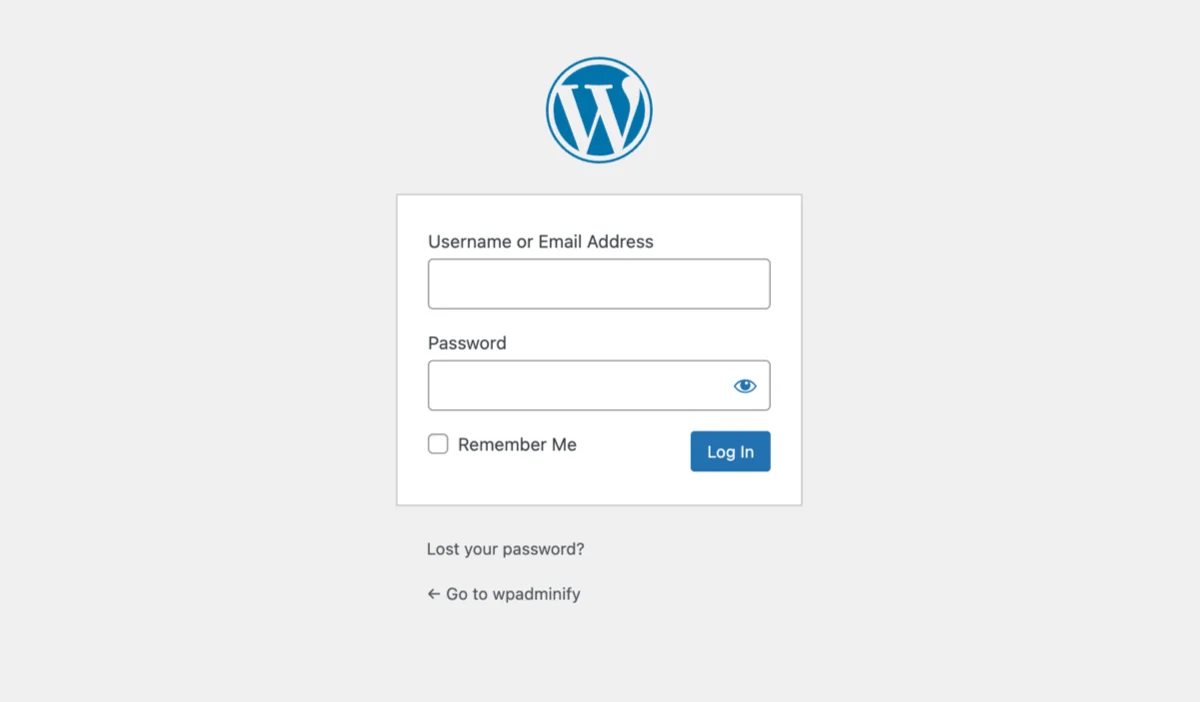
Never edit wp-login.php
The login page lives in wp-login.php at the root of your WordPress install. It is a core file. Editing it breaks in two ways, both guaranteed:
- The next WordPress update overwrites the file and your changes vanish with no warning.
- Some hosts and security scanners flag a modified core file and may block automatic updates entirely, which is a worse outcome than an ugly login page.
Everything below works through hooks WordPress provides specifically so you do not have to touch that file.
Where the code goes
Two options, and the choice matters more than most tutorials admit.
A child theme. Put the PHP in functions.php and the CSS in a file beside it. Correct for a site where the login design is part of the theme’s identity. It disappears if you switch themes.
A must-use plugin. A single PHP file in wp-content/mu-plugins/. It loads automatically, cannot be deactivated from the admin, and survives a theme change. Correct when the login branding belongs to the site rather than the theme, which on a client site it usually does.
The code is identical either way. Examples below assume a child theme; to use an mu-plugin, create wp-content/mu-plugins/login-branding.php, open it with <?php, and paste the same functions in.
Never edit the parent theme’s functions.php directly. A theme update overwrites it exactly the way a core update overwrites wp-login.php.
Step 1: load a stylesheet on the login page only
WordPress fires login_enqueue_scripts when it renders the login screen, and nowhere else. That is the hook you want, because it means your login CSS never loads on the front end or in the admin.
In functions.php:
Then create login.css in your child theme folder. Bump the version string whenever you edit it, otherwise browser and server caches will keep serving the old file and you will spend twenty minutes debugging CSS that is already correct.
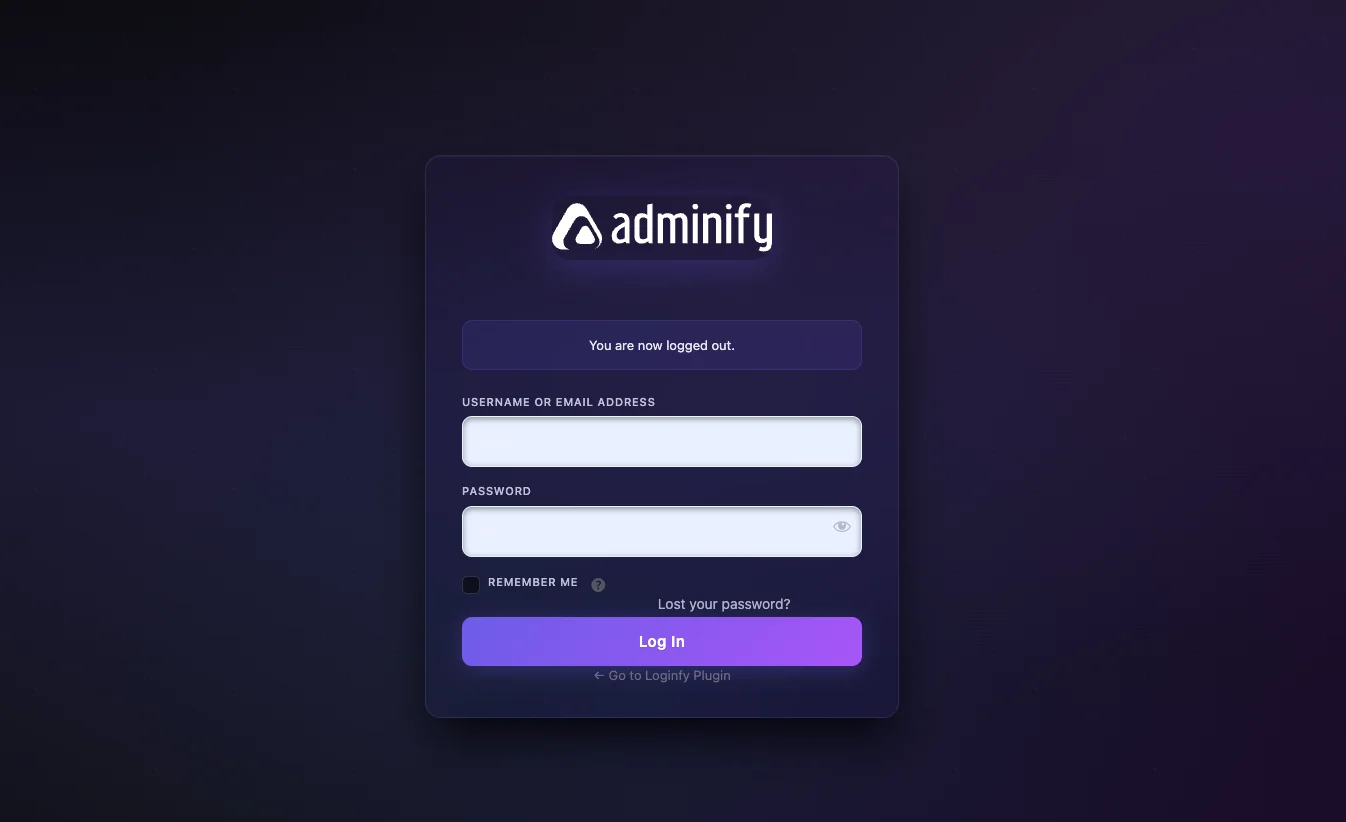
Step 2: replace the logo
WordPress renders the logo as a background image on the <a> inside the page’s <h1>. You override that background, and you must set width, height and background-size together or the image will be cropped to the default 84×84 box.
The path is relative to login.css, so images/logo.svg means your-child-theme/images/logo.svg.
Use SVG where you can. It is sharp at any density and usually smaller than the PNG. If you need a raster, export at twice the display size, so 440×128 for the box above.
Step 3: fix the logo link and title
By default that logo links to wordpress.org with the title “Powered by WordPress.” On a client site, both are wrong. Two filters:
add_filter( ‘login_headerurl’, function () { return home_url(); } ); add_filter( ‘login_headertext’, function () { return get_bloginfo( ‘name’ ); } );Note the second filter name. It was login_headertitle before WordPress 5.2 and you will still find the old name in tutorials and Stack Overflow answers. It has been deprecated for years. Use login_headertext.
Full detail on sizing, retina and multisite behaviour is in how to change the WordPress login logo.
Step 4: style the background
The whole page is body.login. Three variants, all in login.css.
Flat colour:
body.login {
    background: #0f172a;
}
Gradient:
body.login {
    background: linear-gradient(135deg, #4f46e5 0%, #1e1b4b 100%);
    background-attachment: fixed;
}
Image with a dark overlay, which is the version you want if the background is a photograph:
body.login {
    background-image:
        linear-gradient(rgba(0, 0, 0, .55), rgba(0, 0, 0, .55)),
        url('images/login-bg.jpg');
    background-size: cover;
    background-position: center;
    background-attachment: fixed;
}
That semi-transparent linear-gradient stacked above the image does the same job as an overlay slider in a plugin UI. Without it, form text will be unreadable wherever the photograph happens to be bright.
Compress the image to WebP and keep it under 300KB. See changing the WordPress login page background for the format and sizing rules.
Step 5: restyle the form
The form is .login form. Core gives it a white box with a thin border and a small shadow. Replace all three.
.login form {
    background: #ffffff;
    border: none;
    border-radius: 12px;
    box-shadow: 0 16px 40px rgba(0, 0, 0, .28);
    padding: 32px 28px;
    margin-top: 16px;
}

.login form label {
    color: #334155;
    font-size: 14px;
    font-weight: 500;
}

.login input[type="text"],
.login input[type="password"] {
    background: #f8fafc;
    border: 1px solid #cbd5e1;
    border-radius: 8px;
    padding: 10px 12px;
    font-size: 15px;
    box-shadow: none;
}

.login input[type="text"]:focus,
.login input[type="password"]:focus {
    border-color: #4f46e5;
    box-shadow: 0 0 0 3px rgba(79, 70, 229, .18);
    outline: none;
}
Do not remove the focus state without replacing it. Keyboard users navigate this form with Tab, and an invisible focus ring makes the page unusable for them. Swapping the browser default for a coloured ring is fine; deleting it is not.
Step 6: restyle the button
.login .button-primary {
    background: #4f46e5;
    border-color: #4f46e5;
    color: #ffffff;
    text-shadow: none;
    box-shadow: none;
    border-radius: 8px;
    height: auto;
    padding: 10px 20px;
    font-size: 15px;
    font-weight: 600;
    width: 100%;
    transition: background .15s ease;
}

.login .button-primary:hover,
.login .button-primary:focus {
    background: #4338ca;
    border-color: #4338ca;
}
text-shadow: none and box-shadow: none are doing real work here. Core applies both, and leaving them in place is what makes a recoloured button still look like a 2012 WordPress button.
Step 7: the links under the form
Two elements: #nav holds “Lost your password?” and #backtoblog holds “Back to site.” On a dark background both are unreadable until you recolour them.
.login #nav a,
.login #backtoblog a {
    color: #cbd5e1;
    text-decoration: none;
}

.login #nav a:hover,
.login #backtoblog a:hover {
    color: #ffffff;
}
To hide “Back to site” entirely, which is common on white-labelled client sites:
.login #backtoblog {
    display: none;
}
Step 8: rewrite the error messages
By default WordPress tells a failed login whether the username exists. That is a username enumeration hole: an attacker learns which accounts are real before guessing a single password. Replace every login error with one generic string:
add_filter( 'login_errors', function () {
    return 'The username or password you entered is not correct.';
} );
One line, and it closes the leak while making the page read less like software. The wider version of this argument, including the WordPress REST API route that leaks the same information, is in customizing WordPress login error messages.
Step 9: make it work on a phone
The login page is responsive by default, and it stops being responsive the moment you set a fixed form width. If you set one, set a max-width too:
@media screen and (max-width: 480px) {
    .login form {
        padding: 24px 18px;
        border-radius: 10px;
    }

    .login h1 a {
        width: 180px;
        height: 52px;
    }

    body.login {
        background-attachment: scroll;
    }
}
That last rule matters. background-attachment: fixed is unreliable on iOS Safari and can render a background image at the wrong scale or not at all. Switch it to scroll below 480px.
The complete file
Everything above, assembled. Drop this into login.css and adjust the colours.
body.login {
    background-image:
        linear-gradient(rgba(0, 0, 0, .55), rgba(0, 0, 0, .55)),
        url('images/login-bg.jpg');
    background-size: cover;
    background-position: center;
    background-attachment: fixed;
}

.login h1 a {
    background-image: url('images/logo.svg');
    background-size: contain;
    background-repeat: no-repeat;
    background-position: center;
    width: 220px;
    height: 64px;
    margin-bottom: 24px;
}

.login form {
    background: #ffffff;
    border: none;
    border-radius: 12px;
    box-shadow: 0 16px 40px rgba(0, 0, 0, .28);
    padding: 32px 28px;
}

.login form label { color: #334155; font-size: 14px; font-weight: 500; }

.login input[type="text"],
.login input[type="password"] {
    background: #f8fafc;
    border: 1px solid #cbd5e1;
    border-radius: 8px;
    padding: 10px 12px;
    box-shadow: none;
}

.login input[type="text"]:focus,
.login input[type="password"]:focus {
    border-color: #4f46e5;
    box-shadow: 0 0 0 3px rgba(79, 70, 229, .18);
    outline: none;
}

.login .button-primary {
    background: #4f46e5;
    border-color: #4f46e5;
    text-shadow: none;
    box-shadow: none;
    border-radius: 8px;
    height: auto;
    padding: 10px 20px;
    font-weight: 600;
    width: 100%;
}

.login .button-primary:hover,
.login .button-primary:focus { background: #4338ca; border-color: #4338ca; }

.login #nav a,
.login #backtoblog a { color: #cbd5e1; text-decoration: none; }

.login #nav a:hover,
.login #backtoblog a:hover { color: #ffffff; }

@media screen and (max-width: 480px) {
    .login form { padding: 24px 18px; }
    .login h1 a { width: 180px; height: 52px; }
    body.login { background-attachment: scroll; }
}
What this method costs you
Four real costs come with doing it this way, and it is better to know them before you start than after.
Selectors can drift. WordPress occasionally adjusts login markup between major releases. When it does, a rule stops matching and part of your design silently reverts. Nothing errors. You find out when someone mentions the login page looks odd. Re-check after every major WordPress upgrade.
No live preview. Edit, save, hard refresh the login page, repeat. Expect this to take longer than the code itself.
It does not travel. Child theme code goes away with a theme switch. An mu-plugin solves that, at the cost of being invisible on the Plugins screen, which is its own kind of surprise for whoever inherits the site.
Nobody else can change it. The client who wants a different logo next quarter needs you, or a developer, or FTP access. If that is a problem, this is the wrong method.
When to use a plugin instead
Use a login customizer when the design needs to be editable by someone who does not write code, when you are doing this across many client sites, or when you want features that are genuinely hard to hand-roll: a live preview, template presets, video or slideshow backgrounds, per-field label editing.
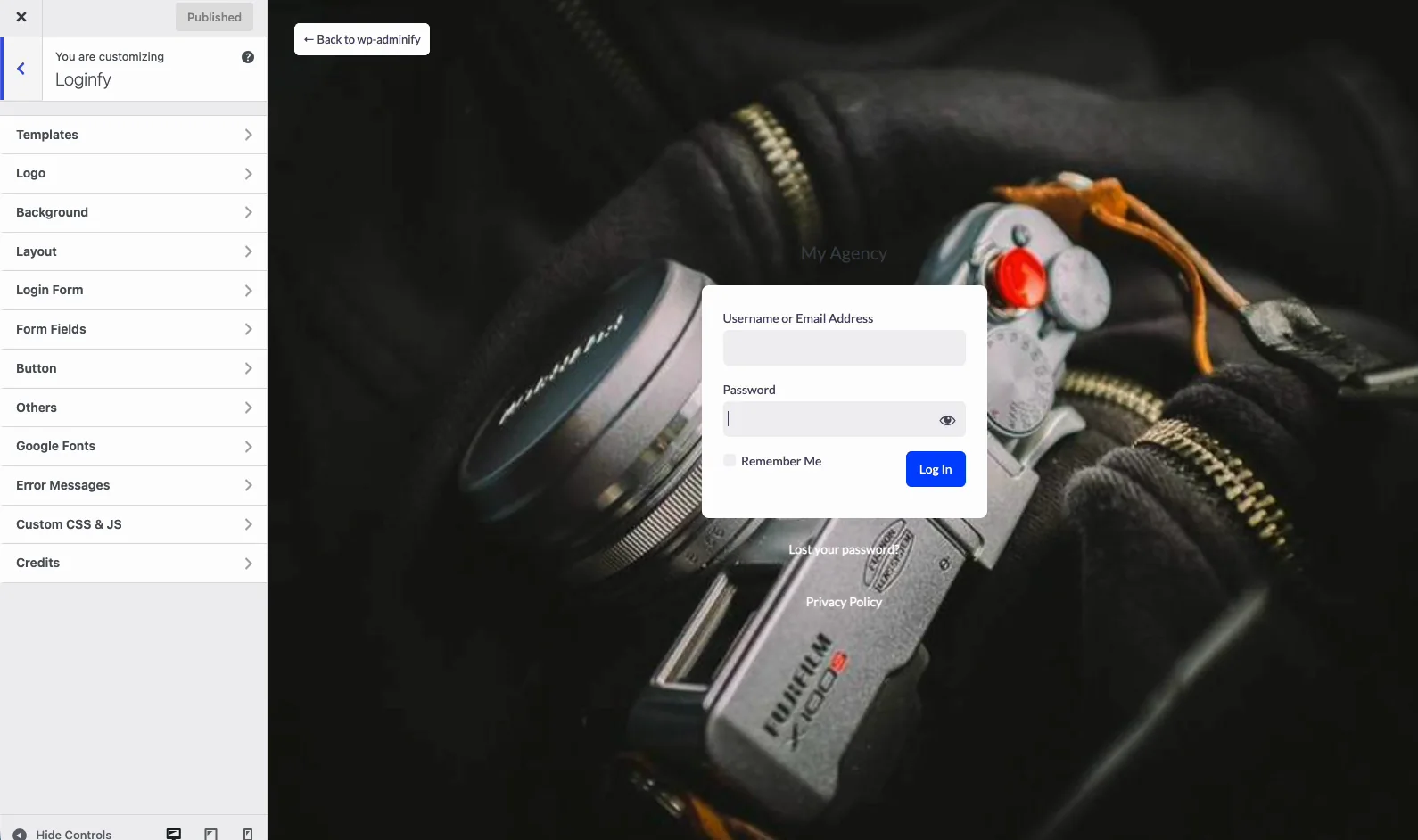
A customizer plugin does not lock you out of code either. Most of them, Loginfy included, ship a Custom CSS and JS box on the free tier, so you can use the interface for the bulk of the work and hand-write the last ten percent.
A side-by-side of the plugin options is in the best WordPress login page plugins, and the plugin walkthrough is in how to create a custom WordPress login page.
If you lock yourself out
A PHP error in functions.php can take down the whole site, login page included. The fix is always the same and it does not need a backup.
Connect over FTP or SSH, open the file, and remove the code you just added. If you cannot find the error, rename the child theme folder: WordPress falls back to the parent theme or to a default theme and the site comes back. For mu-plugins, delete the file from wp-content/mu-plugins/.
Test on staging first, or at minimum keep an FTP client already connected in another window before you save. More recovery routes in how to fix WordPress login page issues.
Frequently asked questions for Customize the WordPress login page
Next steps
Once the design is done, the next job is the half the code above does not touch: making the login itself hard to attack. Start with the WordPress login security checklist. For the complete reference on everything the login page can do, see the WordPress login page customization guide.