WordPress doesn’t give you a setting for the admin font. Every dashboard uses the same system font at the same small size, and the only built-in way to change it is to write code. You notice it when you’re setting up a branded dashboard for a client, or after a long day of reading 13px text.
We tested two ways to change the WordPress admin font on WordPress 7.1: the Body Font option in WP Adminify’s dashboard customizer, and a small must-use plugin you can paste in. After those come a snippet for bigger admin text and a rundown of what a font change reaches. For the rest of the admin area, see our WordPress dashboard customization guide.
Quick answer: with WP Adminify Pro, go to WP Adminify > Settings > Customize > Body Font, pick a font and save. Without a plugin, create a must-use plugin that enqueues the font on admin_enqueue_scripts and applies it to body, #adminmenu and #wpadminbar *. Additional CSS in the Customizer won’t work, because it only loads on the front end.
What Font Does the WordPress Admin Use?
The WordPress admin uses the native system font stack instead of a web font. You can see it in core’s common.css: -apple-system, BlinkMacSystemFont, "Segoe UI", Roboto, Oxygen-Sans, Ubuntu, Cantarell, "Helvetica Neue", sans-serif. So the dashboard shows San Francisco on a Mac, Segoe UI on Windows and Roboto on Android. WordPress switched to this stack from Open Sans in version 4.6. The default size is 13px for body text and 14px for the main admin menu.
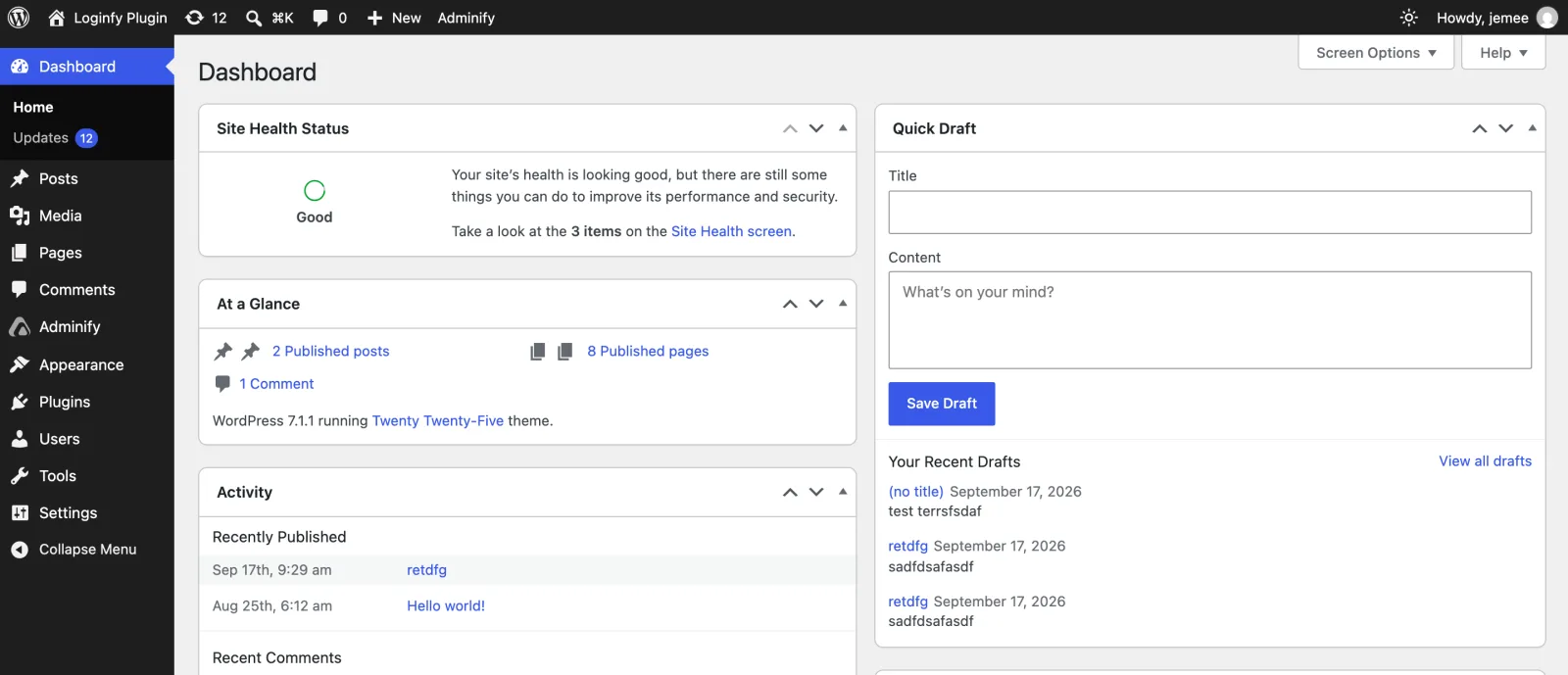
In this guide, “admin font” means the text on wp-admin screens: the admin menu, the admin bar, headings, tables, forms and buttons. Your theme controls the front-end fonts, and WordPress 7.0’s Font Library (Appearance > Fonts) manages those. The content area of the block editor is also separate, as the section on what changes explains.
Method 1: Change the Admin Font with WP Adminify
If you already use WP Adminify, the admin font is a dropdown. Body Font is a Pro option; the free version shows it with an upgrade badge. You can leave the Adminify UI theme switched off. We tested that on WP Adminify 4.3.2, and the font still applied everywhere.
- Go to WP Adminify > Settings and open the Customize tab.
- Find Body Font and choose a font in Font Family. The list includes Google Fonts and web-safe fonts.
- Pick a weight and style in Font Style, for example Normal 400.
- Click Save Settings and reload any admin screen.
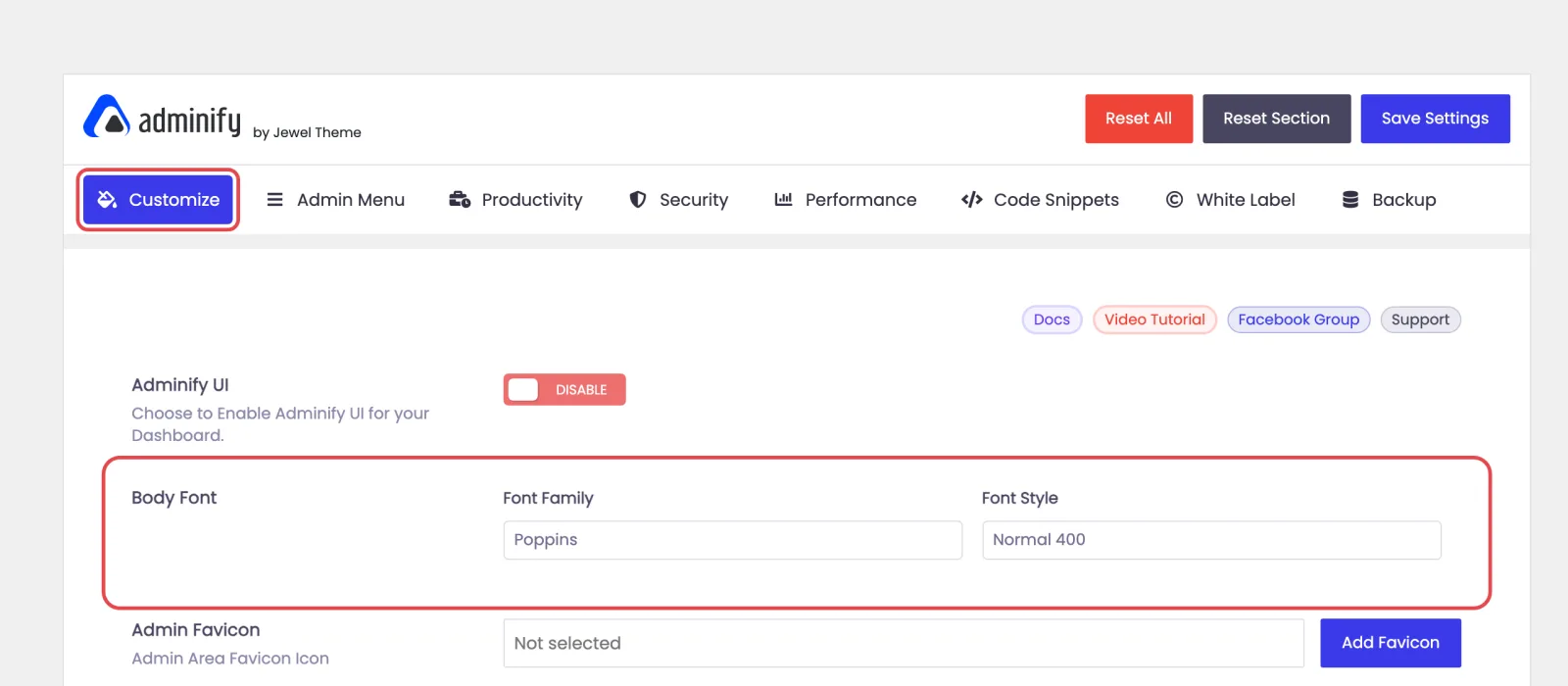
Body Font in WP Adminify’s Customize tab, set to Poppins. After saving: the dashboard, admin menu and admin bar all use Poppins.
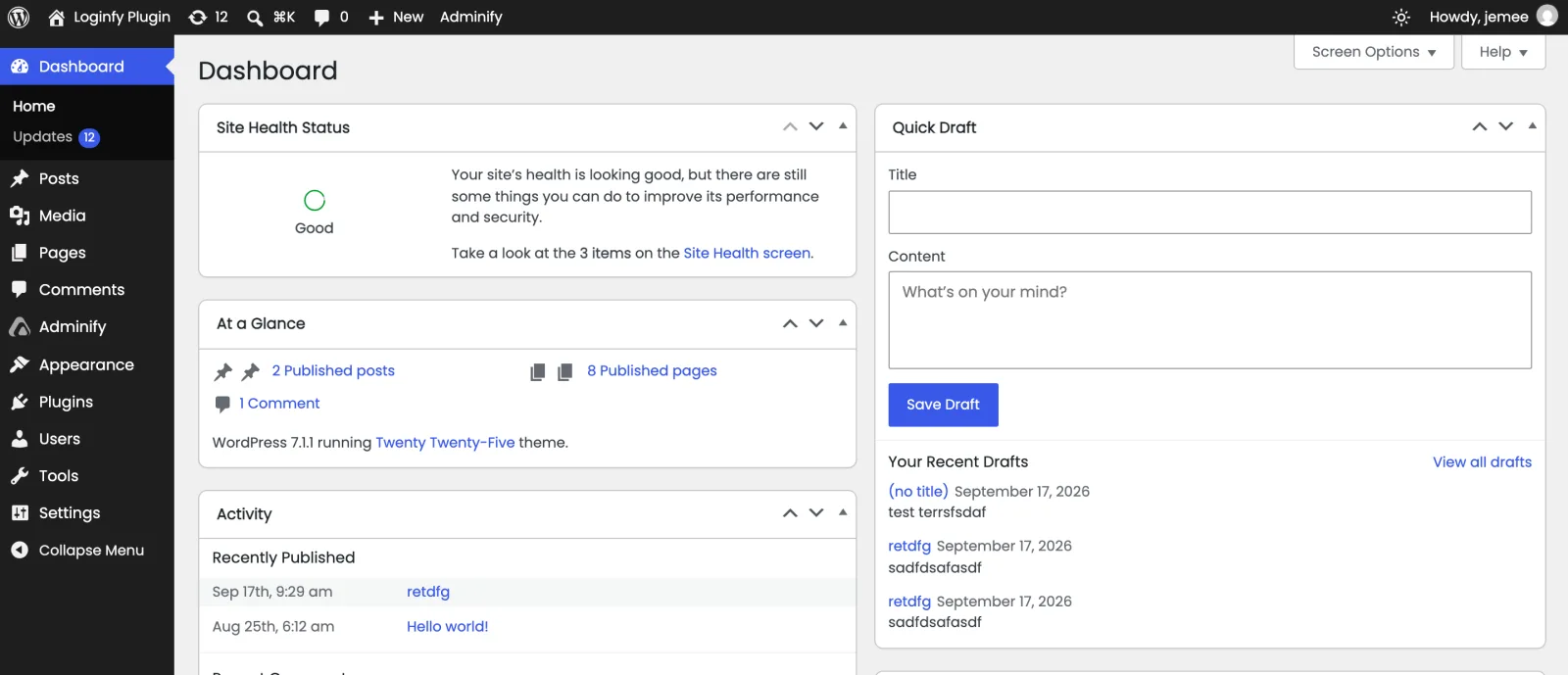
WP Adminify downloads the Google Font and serves it from your own site (under wp-content/uploads/adminify-google-fonts/), so browsers never contact Google’s font servers and the privacy question below doesn’t apply. Body Font sets the family, weight and style. It has no size setting, so use the font-size snippet further down if you want bigger text. The Body Font documentation covers the option in more detail.
Method 2: Change the Admin Font with a Must-Use Plugin
Without WP Adminify, a short must-use plugin does the same job. I’d use that over your theme’s functions.php: theme code disappears when you switch themes, and a parent theme update overwrites it. Must-use plugins load on every admin page whatever theme is active.
Create wp-content/mu-plugins/admin-font.php (make the mu-plugins folder if it doesn’t exist) and paste this in. It uses Lexend as the example; change the font name in both places for any other Google Font.
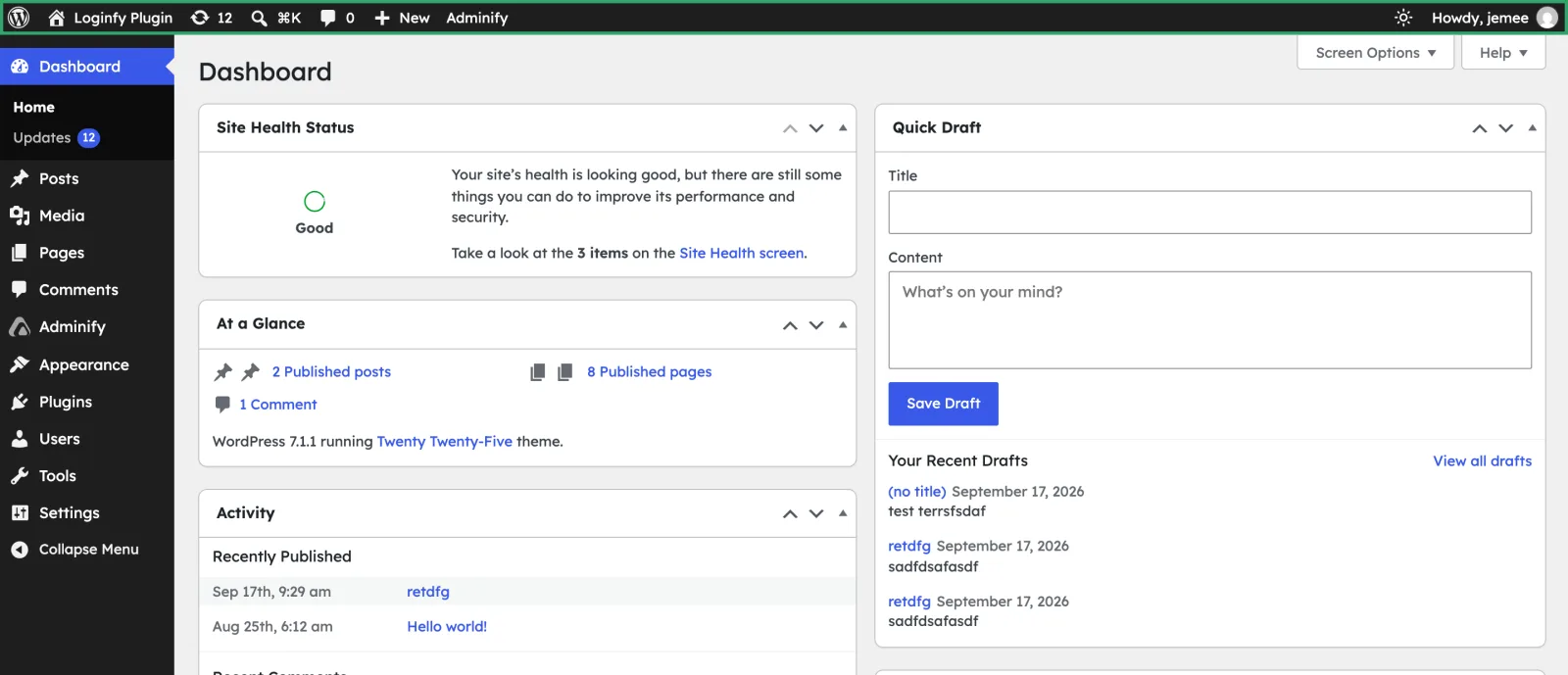
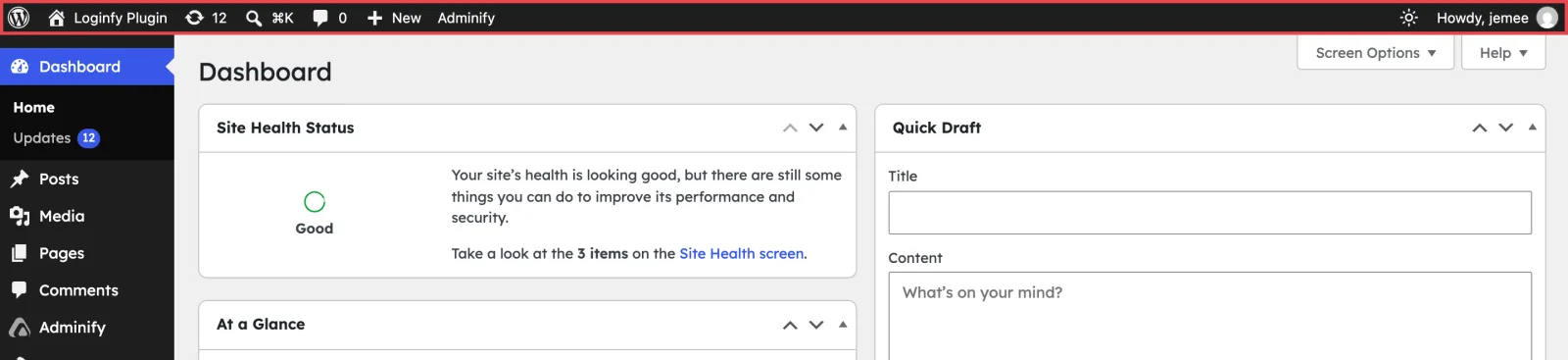
Most snippets you’ll find (including the one this post used to show) target #wpadminbar, which changes nothing you can see. WordPress sets the font on every element inside the admin bar with #wpadminbar *, so your rule has to target those children. The :not(.ab-icon) part keeps the admin bar icons intact, and nothing here touches Dashicons, so the menu icons don’t turn into empty squares.
Use a self-hosted font instead of Google Fonts
Loading fonts from fonts.googleapis.com sends each admin user’s IP address to Google. Only a handful of people use the admin area, but if your agency or client has a strict GDPR policy, host the font yourself. Download the font files and a stylesheet (the google-webfonts-helper tool does this), upload them to wp-content/uploads/admin-fonts/, and change the URL in step 1:
Change the font for one user only
The plugin changes the font for everyone who logs in. If only you want the new font, add this at the top of the function, with your own user ID (you’ll see it as user_id= in the address bar when you edit your profile from Users > All Users):
How to Change the WordPress Admin Font Size
WordPress has no admin font-size setting, and neither does WP Adminify’s Body Font option. You can use browser zoom, a CSS snippet or a plugin:
- Browser zoom (Ctrl or Cmd and
+) enlarges everything, icons and spacing included, and your browser remembers it per site. If you’re the only one who wants bigger text, it’s the quickest fix. - The CSS snippet below changes the text size for everyone and leaves the layout alone.
- PublishPress Capabilities has an Admin Font Size setting under Admin Styles, if you’d rather click than code.
Add it to the same admin-font.php file or to a must-use plugin of its own. WordPress sets font sizes on many different selectors, so a single body { font-size } rule only enlarges part of the text. This version covers the menu, tables, settings forms, fields and buttons:
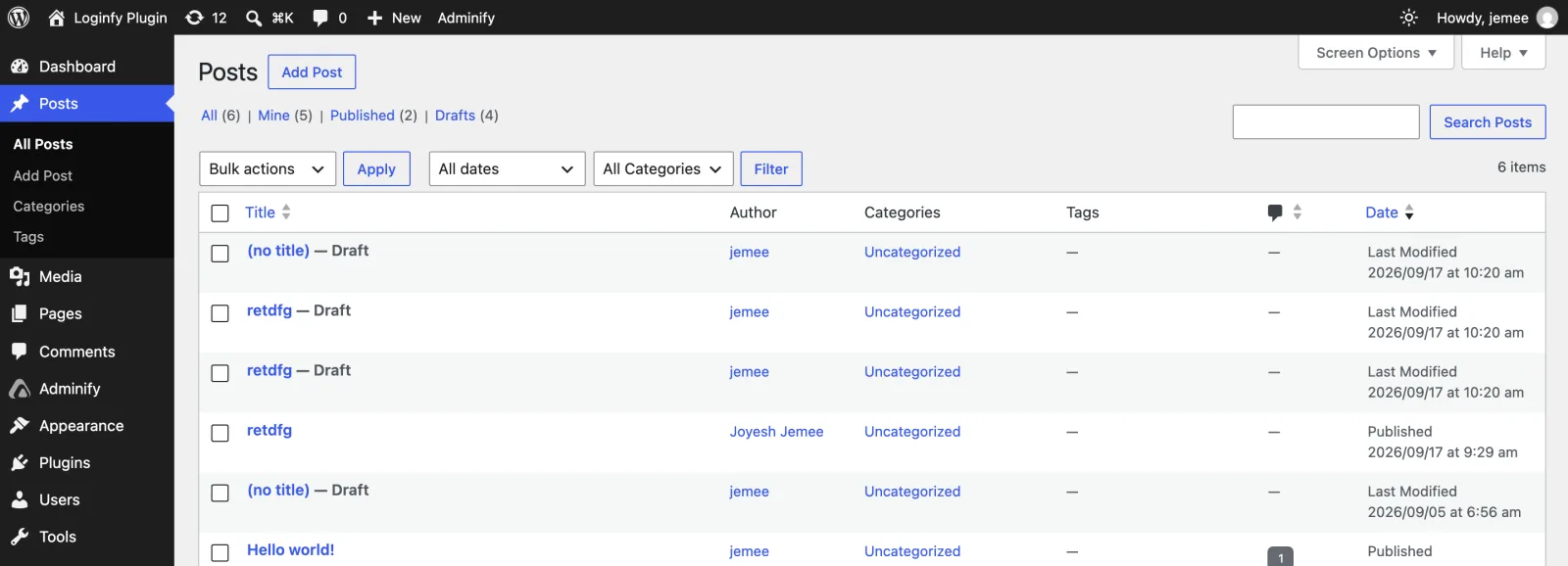
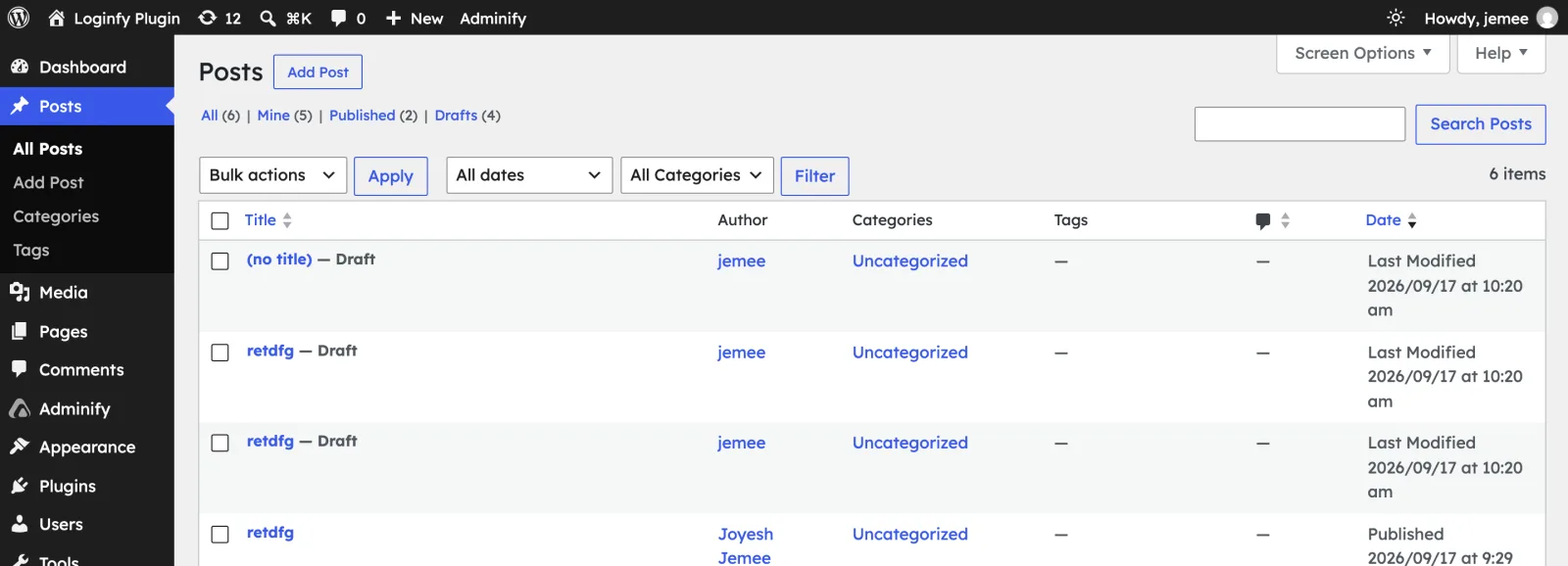
The Posts screen at the default size. The same screen with the snippet: 15px text in the menu, table and buttons.
What Changes and What Doesn’t
We checked each of these on WordPress 7.1 with the must-use plugin active:
- Admin screens, the admin menu, the admin bar, forms and buttons all switch to the new font.
- So do the block editor’s toolbar and sidebar.
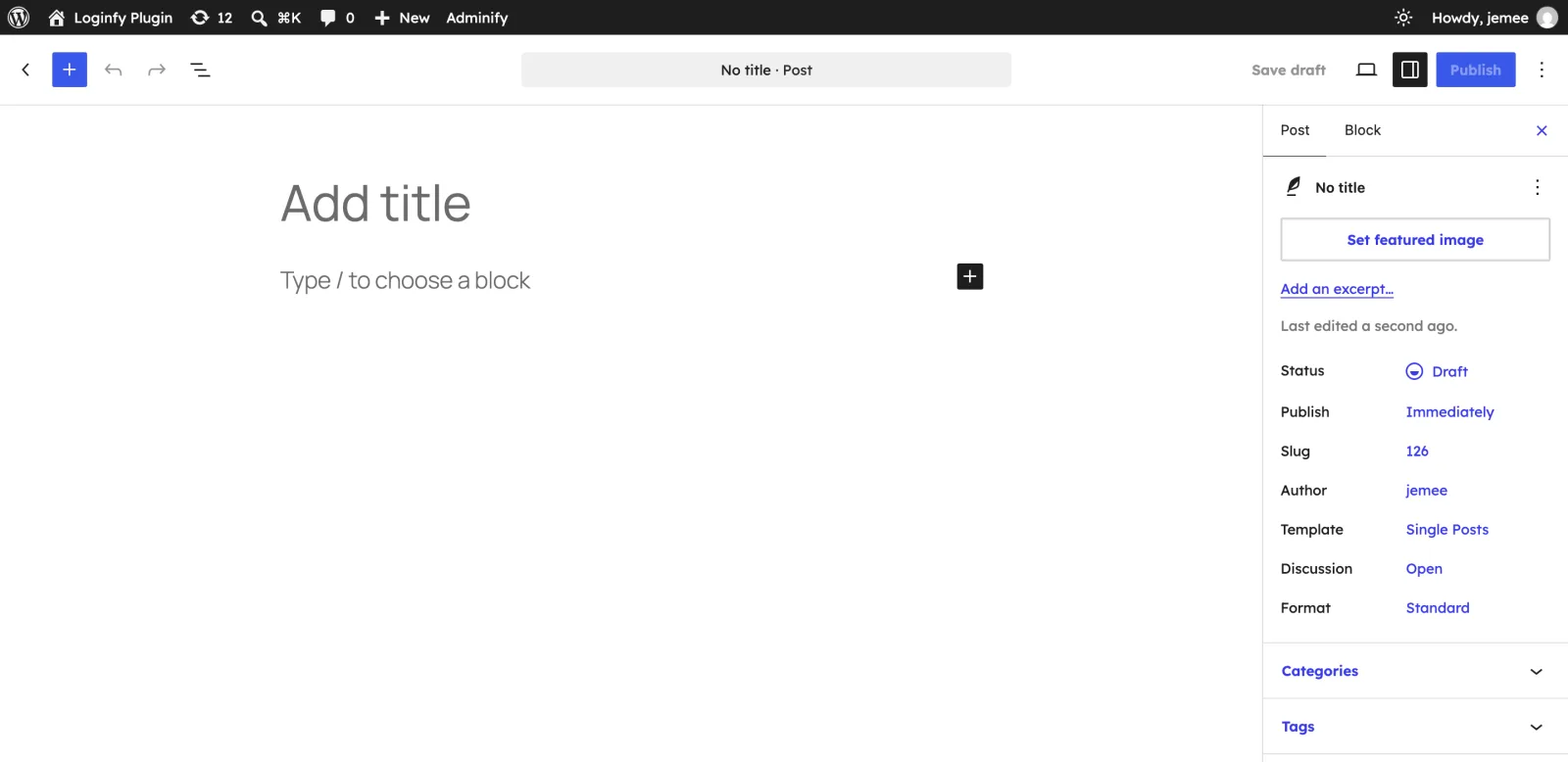
- The post content in the editor keeps your theme’s fonts (Manrope on Twenty Twenty-Five), because the editor previews content the way visitors will see it. Change the theme’s typography if you want that to change.
- Your front end stays the same, because admin styles only load in wp-admin.
- The login page has its own stylesheet, so it keeps its font too. Loginfy or a
login_enqueue_scriptssnippet handles that.
Troubleshooting
- The admin bar didn’t change. Your CSS targets
#wpadminbarinstead of#wpadminbar *. - Icons turned into squares or letters. A rule like
* { font-family: ... }has overridden Dashicons. Target specific elements, as in the plugin above. - Nothing changed at all. Check that the file is directly in
wp-content/mu-plugins/(not in a subfolder), and that you didn’t paste the code into Appearance > Customize > Additional CSS. That panel only styles the front end. - The font falls back to sans-serif. The font name in the CSS must match the family in the stylesheet URL exactly, including capitals and spaces.
WordPress Admin Font FAQ
Wrapping Up
You can change the WordPress admin font with WP Adminify Pro’s Body Font dropdown, or with a short must-use plugin that loads a font and targets #wpadminbar * so the admin bar changes too. Font size needs its own CSS snippet. Your front end and the editor’s content area keep their fonts either way. Fonts pair well with the admin color scheme and dark mode if you’re giving wp-admin a full makeover. WP Adminify handles all three from one settings page (see the Pro plans).