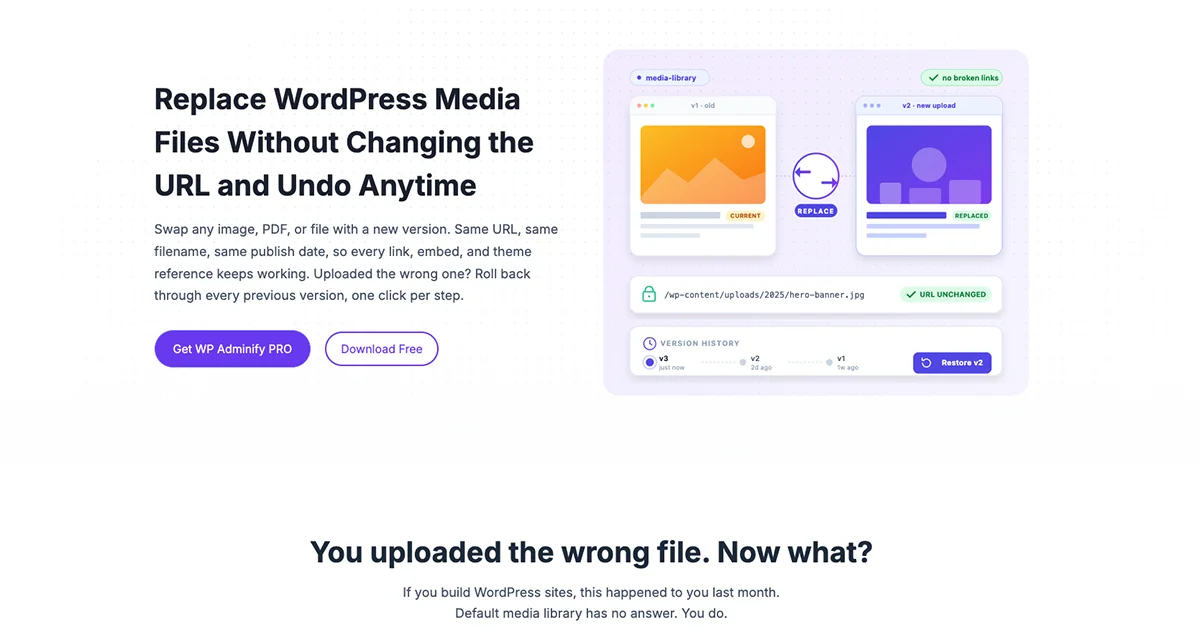
Replace WordPress Media Files Without Changing the URL and Undo Anytime
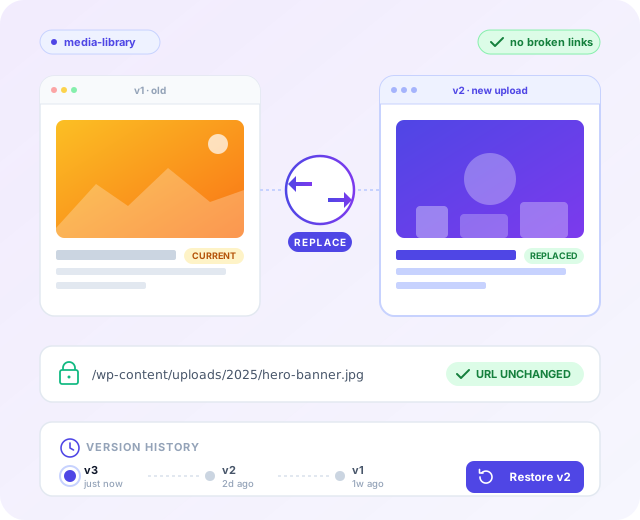
Swap any image, PDF, or file with a new version. Same URL, same filename, same publish date, so every link, embed, and theme reference keeps working. Uploaded the wrong one? Roll back through every previous version, one click per step.
You uploaded the wrong file. Now what?
If you build WordPress sites, this happened to you last month.
Default media library has no answer. You do.
What Media Replace Does
Four things that make the difference
URL stays identical
Replace any file. The URL stays locked, along with the attachment ID, filename, and publish date. Every link pointing to that file keeps working without you editing anything – across posts, emails, RSS feeds, even partner sites.
Multi-step Back to Original
Replaced a file five times? Roll back five times, one click per step. Every previous version gets backed up automatically. A counter beside the link tells you exactly how many backups are left.
Works in grid view + list view
Replace from the attachment modal, the Edit Media screen, or the row hover actions. Most plugins force you into list view. Media Replace works wherever you already are.
Metadata stays Same
Alt text, captions, descriptions, attachment relationships – all preserved. You’re swapping the file content, not redoing months of SEO work.
Replace media from inside the Gutenberg editor
Editing a post and the image is wrong? Don’t leave the editor. Click the Image block, hit Replace File in the block toolbar, pick the new file. Same URL, same attachment ID, same alt text, same backup history. The post doesn’t reload.
How It Works
Replace Media in WordPress, two ways
Use whichever Media Library view you prefer. The flow is the same.
From the attachment modal
You’re already inside the media popup. Don’t leave it.
From the Edit Media screen
For when you’re already editing metadata or batch-managing files.
One rule: the new file must match the original’s MIME type. JPG → JPG. PDF → PDF. To change format, upload as new media.
Multi-step undo. Nobody else has this.
Every WordPress media replace plugin does the swap. Only WP Adminify
lets you walk it back. Every step, every version.
Replace 5 times. Roll back 5 times.
Every replacement creates a backup. Click Back to Original once. You’re on version 4. Click again. Version 3. Keep clicking until you’re back to the original. The counter beside the link tells you how many backups remain.
This is actual version history, not a “delete and re-upload” workaround. Files stay attached. URLs stay intact. SEO survives.
Why it matters?
Comparison
WP Adminify vs Other Media Replace Plugins
Let’s breakdown what other media replace plugin offers vs WP Adminify
| Feature | WP Adminify Pro | Other Media Replace |
|---|---|---|
| Replace file, keep URL | ✓ Yes | ✓ Yes |
| Multi-step undo (Back to Original) | ✓ Unlimited rollback | ✗ Not available |
| Replace from grid view | ✓ Yes | ✗ List view only |
| Replace from row hover actions | ✓ One click | ✗ Must open Edit screen |
| Visual file preview before confirming | ✓ Thumbnail + size | ✗ No preview |
| Page Builder compatibility | ✓ Works | ✗ Known breakage |
| Replacement counter on each file | ✓ Visible (2), (3), etc. | ✗ No history |
| Bundled with admin productivity suite | ✓ 70+ modules | ✗ Single-purpose |
| Same MIME type rule enforced | ✓ Yes | ~ Optional |
⚠ One thing to watch: caching
When you replace a file, the URL stays the same. That’s the catch. CDNs (Cloudflare, BunnyCDN), caching plugins (WP Rocket, LiteSpeed Cache), and visitor browsers will keep serving the old version until the cache expires.
If your replaced file isn’t showing:
- Purge your caching plugin (settings → cache → clear)
- Purge your CDN cache for the specific file URL
- Open the file URL in an incognito window to bypass browser cache
- Wait 5–15 minutes for global CDN propagation
Not a Media Replace bug. Every WordPress media replacement tool runs into this. URL persistence is what makes the feature useful, and it’s also what makes caches sticky.

“The plugin is stable and does not affect performance, which is a significant advantage. ”

@gdimitrov
WordPress.org
“This plugin is very great: works fine, gives a very nice look to the WordPress Dashboard”

@peopleinside
WordPress.org
“This plugin lets me transform the UI, user-friendly, and fast, essential for a modern website backend.“

Sascha Donelasci
Web Design Agency
“Support has been responsive and helpful, truly putting the customer first” , a rare quality these days.

Louis J Gleason
Developer & Creator
“I am totally blown away with all that WPAdminify can do! ALREADY WAY BEYOND EXPECTATIONS!!”

@shezoom
Startup
“Lot of functionalities and ability to, customize admin & login on WordPress, active support & updates.”

@Myllio
WordPress.org
- Yearly
- Lifetime
Save Page
Save Page
Save Page
Save Bunlde Pricing Page
Save Page
Save Page
Save Page
Save Bunlde Pricing Page
- Yearly
- Lifetime
Save Page
Save Page
Save Page
Save Page
Save Page
Save Page
Frequently Asked Question (FAQ)
Questions people actually ask about Media Replacement
Get Started with WP Adminify Today
We offer the best WordPress Dashboard Customization and maintenance feature to our users.
Rebrand the admin panel of personal or clients Dashboard within minutes.