Customize your WordPress dashboard with templates, logos, and dark mode
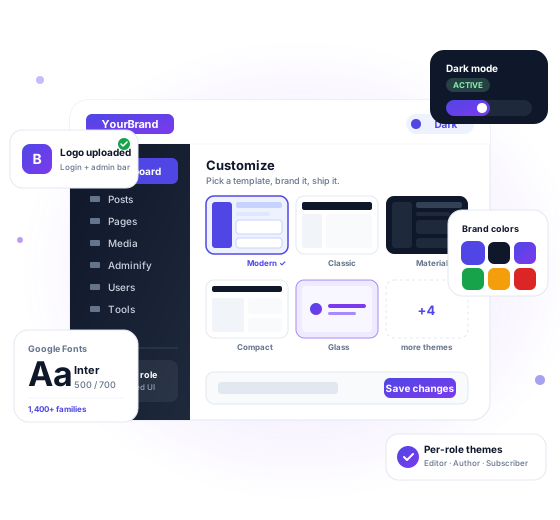
Pick from 9 admin templates, swap the logo, change the dashboard font, switch on dark mode, and assign different themes per user role. Same wp-admin, branded for your clients, scoped to whoever logs in. No CSS hacks, no child plugins, no edits to functions.php
What Is a WordPress Admin Theme (and Why Change It)?
A WordPress admin theme is a plugin that restyles the wp-admin dashboard: menu colors, background, fonts, logo and dark mode. It never touches the theme your visitors see. Default WordPress ships gray, generic, and identical for every user, while WP Adminify gives you nine ready-made admin templates plus Light, Dark, Gradient and Glass skins.
If you build sites for clients, that’s a problem. Six situations where it hurts.
Things that separate default wp-admin from a branded one
Let’s dive into each specific feature that you will get inside our customization option panel. These options will help you control your default WordPress UI and enhance the beauty of your admin control panel.
9 WordPress Admin Templates
Enabling WP Adminify UI will unlock 9 awesome Admin templates. Not only this, but also you get access to a color picker that helps you to build your dreamy Dashboard.


WordPress Admin Background
Just like we use wallpaper in our smartphone to remind us of a special memory, you can now add your memorable or brand related background image in your WordPress Dashboard. It doesn’t mean you have to enable the Adminify UI. This works on both default WordPress Dashboard or Adminify UI.
WordPress dashboard Font
Every brand has a different story and style. You select the most suitable font for your Website but why not for your WordPress Dashboard? WP Adminify presents the feature that allows you to access the available Google Font library and choose the perfect font for your admin panel.


Change WordPress Admin Logo
Do you know that a White label begins with the logo? This small change can create a good impression with your clients. Change the default WP Adminify or WordPress logo from your default Admin panel and make the dashboard shine with your own branding. For the full setup steps, follow our WordPress dashboard customization guide.
Dark Mode and Light Mode
Most tech enthusiasts set Dark Mode by default for their beloved browser and apps. That’s the reason we brought Dark Mode for WordPress Dashboard. This is a default feature in WP Adminify plugin you can always switch to dark mode and light mode whenever you need.


Post Status Background Colors
Get rid of the default post status color and choose your brand colors for different type of post status. This will help you to identify your post status without reading the text, with the help of color you can easily get the clear idea of your any post.
How It Works
One toggle decides how far the customization goes
Stay WordPress UI or Enable WP Adminify UI to see how far the customization goes.
Stay with default WordPress UI
Stock wp-admin look, with a small set of tweaks layered on top. This is the right pick when a client wants WordPress to feel like WordPress and you only need to fix a few rough edges.
Switch on the WP Adminify UI
Flip the toggle to Enable and the Customize screen grows. Templates appear, color presets open up, light and dark mode gets a full setup panel, and you can add a search box plus a notifications bell to the admin bar.
Same screen, same Save button. The Adminify UI toggle is the deciding factor: off for a light touch, on for the full customization set.
Role-based admin themes. (UPCOMING Feature)
Most dashboard plugins paint one look for everyone.
WP Adminify lets you assign a different template, color scheme, logo, and menu set per user role.
Editor gets one template. Subscriber gets another.
Editors see a stripped-down dashboard with only the post tools they need. Subscribers see a minimal landing page with no menus at all. Authors see post stats but not site settings.
Configure once in Customize → User Roles. Every user gets the dashboard built for their job. No CSS, no per-user-meta filters, no role-switcher plugins.
What you can scope per role
Comparison
WP Adminify vs other dashboard customization plugins
How WP Adminify stacks up against Ultimate Dashboard, UiPress, and the default WordPress experience.
| Feature | WP Adminify | Ultimate Dashboard | UiPress | Default WordPress |
|---|---|---|---|---|
| Prebuilt admin templates | ✓ 9 templates | ✗ Widget-based only | ✓ 6 themes | ✗ None |
| Custom admin background | ✓ Image, color, gradient | ~ Color only | ✓ Yes | ✗ None |
| Google Fonts integration | ✓ 1,400+ fonts | ✗ No | ✓ Yes | ✗ None |
| Dark mode (true) | ✓ Per-user toggle | ✗ No | ✓ Yes | ✗ None |
| Login screen branding | ✓ Built-in (Loginfy) | ~ Add-on required | ✓ Yes | ✗ None |
| Admin menu editor included | ✓ Yes (Modern UI) | ✗ Separate plugin | ✓ Yes | ✗ None |
| Custom Admin Page | ✓ Yes | ✗ No | ✗ No | – |
| Login & Logout Redirection | ✓ Yes | ✗ No | ✗ No | – |
⚠ Two things to watch: caching and custom CSS specificity
Dashboard customization changes how wp-admin renders, so two things can get in your way: object cache and your own custom admin CSS. Knowing this saves an hour of debugging when a setting “doesn’t take.”
Object cache (Redis, Memcached, W3 Total Cache)
When you switch templates, change a logo, or update the font, the new settings save to the database right away. But if you run a persistent object cache, wp-admin can keep serving the old values until the cache flushes. Symptom: you uploaded a new logo, hit save, refreshed, and the old one still loads.
Fix:
- Flush object cache from your hosting panel or WP-CLI:
wp cache flush - Hard-refresh the browser tab (Cmd+Shift+R on Mac, Ctrl+Shift+R on Windows)
- If you run the Redis Object Cache plugin, click “Flush Cache” in Settings → Redis
- If you proxy wp-admin through Cloudflare (rare), purge the
/wp-admin/*path
Multisite
On a Multisite network, dashboard customization applies per-subsite by default. Network-level branding lives under Network Admin → Adminify → Network Settings. Subsite admins can override unless you lock it via the role manager.
Page builder admin pages
Elementor, Bricks, and Divi inject their own admin UI. Adminify templates skin the WordPress menu and dashboard, but builder edit screens keep their native look. That’s intentional. Overriding builder UI breaks their drag-and-drop.

“The plugin is stable and does not affect performance, which is a significant advantage. ”

@gdimitrov
WordPress.org
“This plugin is very great: works fine, gives a very nice look to the WordPress Dashboard”

@peopleinside
WordPress.org
“This plugin lets me transform the UI, user-friendly, and fast, essential for a modern website backend.“

Sascha Donelasci
Web Design Agency
“Support has been responsive and helpful, truly putting the customer first” , a rare quality these days.

Louis J Gleason
Developer & Creator
“I am totally blown away with all that WPAdminify can do! ALREADY WAY BEYOND EXPECTATIONS!!”

@shezoom
Startup
“Lot of functionalities and ability to, customize admin & login on WordPress, active support & updates.”

@Myllio
WordPress.org
- Yearly
- Lifetime
Save Page
Save Page
Save Page
Save Bunlde Pricing Page
Save Page
Save Page
Save Page
Save Bunlde Pricing Page
- Yearly
- Lifetime
Save Page
Save Page
Save Page
Save Page
Save Page
Save Page
WordPress dashboard customization FAQs
Answers to the most common questions about customizing your WordPress dashboard.
Get Started with WP Adminify Today
We offer the best WordPress Dashboard Customization and maintenance feature to our users.
Rebrand the admin panel of personal or clients Dashboard within minutes.