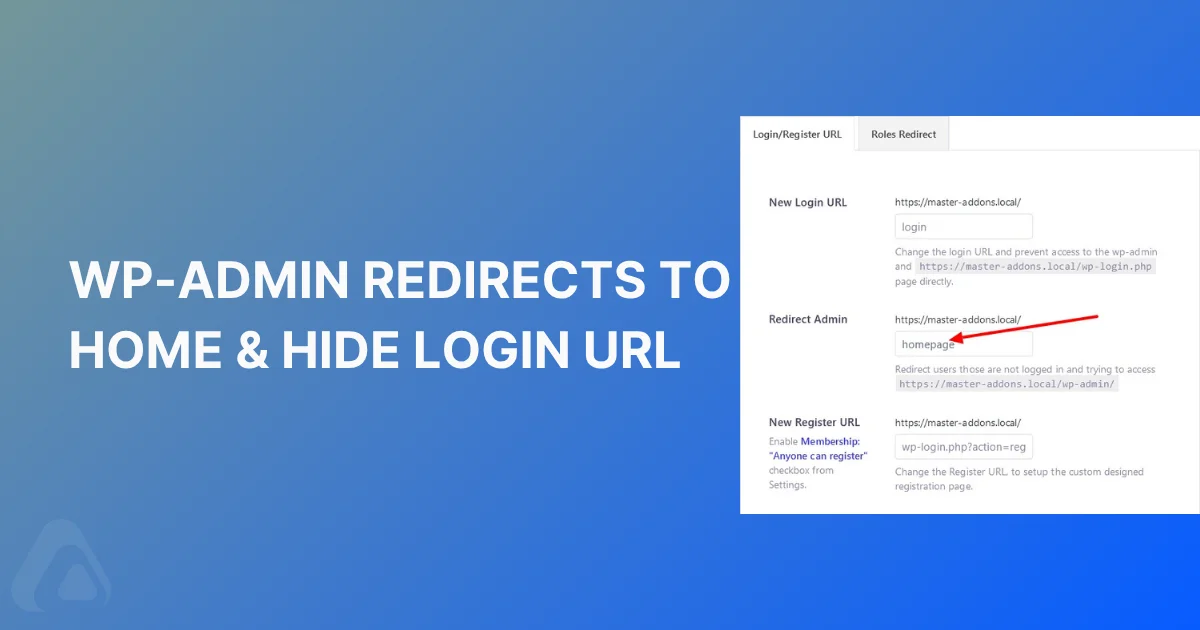
Struggling to access your dashboard because wp-admin redirects to homepage? This common issue is widely known as wp admin redirects to homepage or wordpress admin login redirect to homepage. And this can lock you out from entering your site entirely. It might be an unexpected loop, a security setting gone wrong, or a simple misconfiguration causing the wp admin redirect.
In this guide, you’ll learn how to fix the wp-admin redirect to homepage problem, troubleshoot wp-admin redirect loop errors, and securely hide the WordPress login URL to protect your site.
Whether you’re dealing with WordPress login page redirects to homepage, can’t login to WordPress dashboard, or want to intentionally redirect wp-admin for better security, we’ve got you covered.
We’ll walk through debugging, plugin-free fixes, and pro methods using code or tools like WP Adminify. By the end, you’ll resolve wp redirects, secure your wp admin URL, and regain full control.
What Is a WordPress Login Redirect Loop (and How Do You Fix It)?
A WordPress login redirect loop happens when you enter the correct password but land back on the login page instead of the dashboard. The cause is almost always a rejected authentication cookie: mismatched WordPress Address and Site Address URLs, a corrupted .htaccess file, stale cookies, a conflicting plugin, or Cloudflare running in Flexible SSL mode. Work through the fixes below in that order.
What causes a WordPress login redirect loop?
A WordPress login redirect loop almost always means the site URL and the cookie domain disagree. Check that siteurl and home in wp_options match exactly, including https and any www prefix. If they do, clear cookies for the domain, then rename the plugins folder over SFTP to rule out a conflict before touching anything else.
The reason it feels like a wrong password is that nothing tells you otherwise. WordPress sets an authentication cookie, the browser rejects it because it was issued for a domain that does not match the one you are on, and the next request arrives logged out. There is no failure to report, so you land back on the front page in silence. A genuinely wrong password gives you a red error box, which is a useful thing to check first: silence points at configuration, an error points at credentials.
Force the right URLs with WP_HOME and WP_SITEURL
If the two values in wp_options are wrong and you cannot reach the dashboard to fix them, override them from wp-config.php. Add these above the line that says stop editing, using your real domain and scheme:
define( 'WP_HOME', 'https://example.com' );
define( 'WP_SITEURL', 'https://example.com' );
Constants in wp-config.php win over whatever is in the database, so this takes effect immediately and does not need a login. It is also the fastest way to confirm the diagnosis: if the loop stops the moment you add them, the database values were the problem, and you can correct them properly under Settings > General once you are back in. Note that the fields go read-only while the constants are set, which is expected rather than a fault.
One related trap after an SSL move. If half your URLs still say http and half say https, the login cookie is issued as secure and then not sent back over the insecure request, which produces the same silent bounce. Both values need the same scheme, and so does the COOKIE_DOMAIN constant if a plugin or a previous developer has defined one. A stale COOKIE_DOMAIN pointing at an old domain or a missing leading dot for subdomains will loop every time, and it is easy to miss because nothing else on the site looks broken.
Behind Cloudflare or a Proxy? Fix the HTTPS Redirect Loop
If the browser gives up with ERR_TOO_MANY_REDIRECTS instead of dropping you back on the login form, the problem sits in front of WordPress rather than inside it. Cloudflare set to Flexible SSL is the classic case. Cloudflare reaches your server over plain HTTP, WordPress sees an insecure request, and because WP_SITEURL says https it redirects to https, which Cloudflare downgrades again. The two sides hand the request back and forth until the browser stops trying.
Fix it properly by switching the SSL mode to Full (strict) under SSL/TLS > Overview in the Cloudflare dashboard and installing a real certificate on the origin server. If you sit behind a load balancer or another reverse proxy that terminates SSL for you, tell WordPress the request arrived secure by reading the forwarded header in wp-config.php, above the line that says stop editing:
if ( isset( $_SERVER['HTTP_X_FORWARDED_PROTO'] ) && $_SERVER['HTTP_X_FORWARDED_PROTO'] === 'https' ) {
    $_SERVER['HTTPS'] = 'on';
}
Only add that snippet when a proxy really does terminate SSL for you. On a normal single server it achieves nothing and it masks genuine mixed-content problems. Purge the Cloudflare cache after any change, because a cached redirect keeps looping long after the setting is correct.
Reset Your Security Salts to Clear a Stuck Login Cookie
When the login page simply refreshes and never shows an error, the browser is holding a cookie WordPress no longer recognizes. Regenerating the secret keys and salts invalidates every existing session at once, so the stale cookie is discarded and you are issued a clean one on the next attempt. Fetch a fresh set from the official WordPress salt generator and paste it over the eight matching define() lines in wp-config.php.
Replace the whole block, not part of it. Four old salts sitting next to four new ones produce exactly the silent bounce you are trying to remove. Everyone signed into the site gets logged out, including you and any clients, so warn them first on a busy site. Then close the tab, open a private window and log in again. If that works, the loop was a cookie problem and nothing on the server needed touching.
Why Does WP-Admin Redirect to Homepage?
The wp-admin redirect happens when WordPress sends users away from /wp-admin/ or /wp-login.php to the wp homepage (or another page). The most common causes of these are:
- Plugin or theme conflicts
- Corrupted .htaccess file
- Wrong siteurl or home in the database
- Random security rules
- Cache or cookie issues
This leads to frustrating problems like:
- WordPress wp admin redirect problem
- Wp-admin too many redirects
- WordPress login not redirecting to dashboard
- Can’t find my wordpress admin page
So on and so forth! But, we got your back. Yes, there’s some easy ways to fix it and take back the ownership you thought was gone. So, let’s fix it step by step.
Enable Debugging using wp-config.php to Find the Issue
Before guessing, turn on WordPress debug mode. You need to add a few codes in the wp-config.php file.
Copy and paste the following code inside your wp-config.php file at the root directory of your WordPress installation.
Now try accessing wp admin login URL: (site)/wp-admin/, now visit the wp-content directory. Then check the debug.log file. You will get the idea which causes the redirection issue.
Troubleshoot the WP Admin Redirect Problem
Deactivate All Plugins
Start by deactivating all your plugins. If the issue is resolved, reactivate them one by one to identify the culprit. This will help you determine if a particular plugin is causing the redirect.
To deactivate all plugins at once, login to your FTP or Cpanel. Then just do the following:
- Rename /wp-content/plugins/ → plugins-old
- Create a new empty folder named plugins

If wp-admin redirect to homepage stops, a plugin was the issue. Reactivate one by one to find the culprit.
Switch to Default Theme
Activate a default theme like Twenty Twenty-Five (or similar). No need to delete your other themes.

If activating the default theme solves the issue, then it’s your theme causing the WordPress WP-admin redirects to homepage.
Reset .htaccess File
Sometimes your .htaccess file gets corrupted or misconfigured. So, you need to delete your current .htaccess and replace it with the default WordPress version:
Here, I’m mentioning the default WordPress .htaccess file structure. But if you are running multisite, then you must check the default .htaccess code on the WordPress Codex for reference.
# BEGIN WordPress RewriteEngine On RewriteRule .* – [E=HTTP_AUTHORIZATION:%{HTTP:Authorization}] RewriteBase / RewriteRule ^index\.php$ – [L] RewriteCond %{REQUEST_FILENAME} !-f RewriteCond %{REQUEST_FILENAME} !-d RewriteRule . /index.php [L] # END WordPressThis will fix the wp redirects caused by bad rewrite rules and conditions.
Check WordPress URL Settings
If the issue still persist, then you need to log in to your Website MySQL Database. In phpMyAdmin, edit wp_options table. Ensure siteurl and home match your domain.
So, Log into phpMyAdmin → your database → wp_options table:
- Find siteurl and home
- Make sure both match your actual domain (e.g., https://yoursite.com)

This resolves WordPress localhost redirecting to live site or mismatched wp homepage URL.
Clear Caches and Cookies
Sometimes, the issue can rise from corrupted cookies or cached data. So, you can clear your browser caches and cookies to rule out this possibility.
Important Note: Make sure to select only the “Cookies and Other site data” option properly. If you select all options then it will delete your history, saved password, logged-in google account, and everything from your browser.

Also, you can try to login your hosting and clean your server cache too. It’s not necessary, but you can give it a try.
I hope everything is okay with your website and now you want to create a new private WordPress Dashboard login URL or want to redirect all visitors to homepage or any other custom page who tries to log in to your Website Dashboard by example.com/wp-admin.
How to Hide Login URL & Redirect WP-Admin to Homepage
Hiding the WordPress login page and enabling WP admin redirect to homepage boosts security against brute-force attacks. Use WP Adminify plugin or code to hide WP-admin, hide login page WordPress, or disable WordPress login page.
In this article, I will show you both methods to redirect the WordPress admin dashboard (wp-admin) to your website’s homepage or any custom page.
The first way is straightforward and involves the use of a plugin. Alternatively, you can achieve this redirection by implementing a custom code solution. I will provide a step-by-step explanation for the code-based redirection, ensuring that it is accessible for users of all skill levels.
However, if you find the coding method complex, you are welcome to apply the WP Adminify plugin as a simpler alternative.
WP Admin Redirects to Homepage using Adminify
After installation and activation of the WP Adminify plugin, make sure to check the Security tab from the plugin settings panel. Ensure that the “Redirect URLs” is enabled there.
Otherwise, you can’t set your homepage or any custom page for WP-Admin redirects.
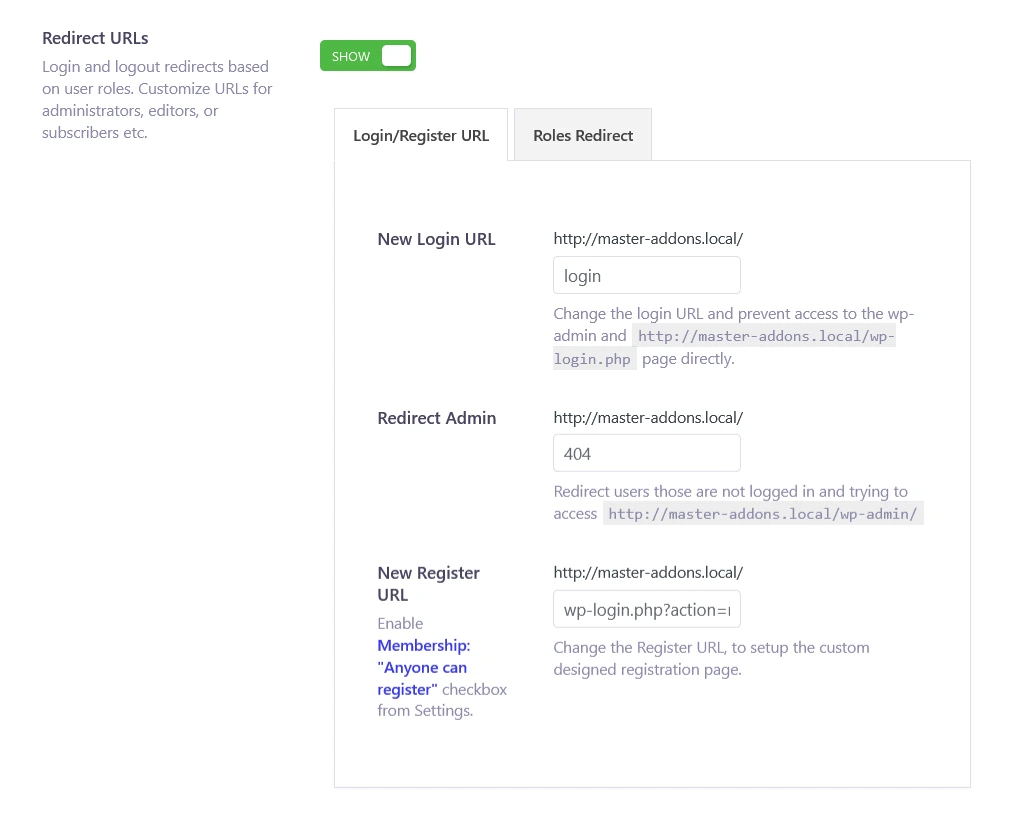
As soon as you tap on the module name, a Login URL page combined with the “New Login URL” and “Redirect Admin” fields will be presented to you. At this time, you need to fill out both fields with appropriate data.
You must input a unique login URL and remember this to login again. This will be your new unique login URL. Make sure to note down this link somewhere so that you don’t forget and share it with your co-worker.
Then inside the Redirect Admin option, just input your homepage slug, or any custom page, even a 404 page (If you like to redirect wp-admin to 404 page).
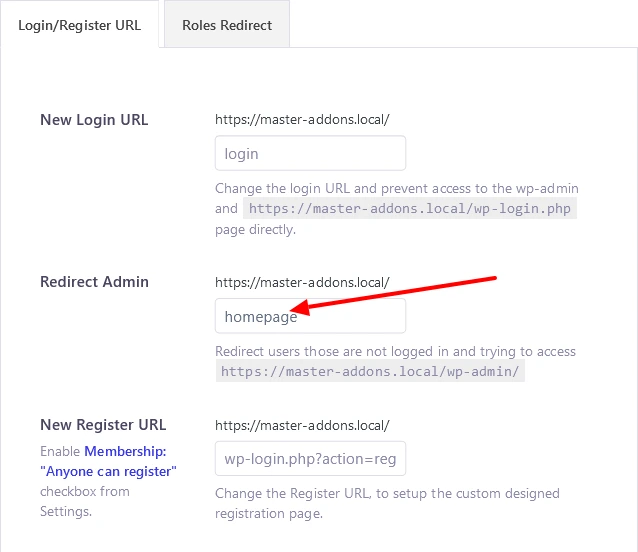
How to get the Homepage Slug?
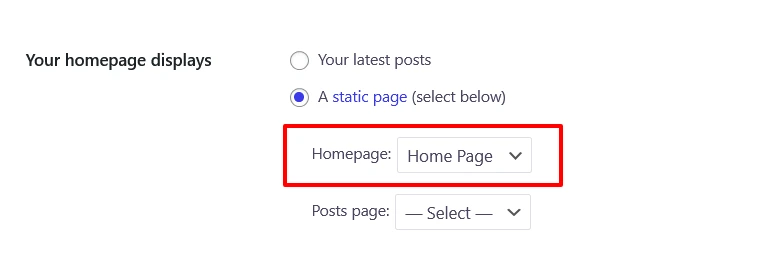
If you can’t remember your homepage slug. Then, you need to set “Your Latest Post” from settings> Reading> Your homepage display. Without doing this, you can’t check the exact slug of your website homepage.
Just navigate to pages> all pages. Now search for your that page which is your homepage. Now Quick edit your homepage and you will get your page slug here. Take a look at the following screenshot.

Also, make sure you have set your homepage properly from Settings> Reading option.
Finally, click on the Save button and check for the instant changes. If everything goes well, users who are willing to visit the admin page of your site will be driven directly to the homepage. Also, you can redirect users after login.
wp-admin Redirects to Homepage using Function.php
There are only 3 steps you should follow carefully.
- Access your WordPress site’s files, either through FTP or your hosting control panel. (Highly recommended to use FTP or Cpanel instead of default WordPress Admin code editor)
- Locate the
functions.phpfile in your active theme’s directory (usually in/wp-content/themes/your-theme-name/). - Open the
functions.phpfile using a code editor (Visual Studio, Sublime) and add the following code at the end.
Save the changes and this is the last step.
Testing the Redirection
After implementing either the code-based or plugin-based redirection, it’s essential to test it. Try to access your WP-Admin page to ensure that it redirects to the homepage.

Final Words
Fixing wp-admin redirects to homepage doesn’t have to be hard. Start with debugging, isolate the cause, then secure your site by hiding the wordpress login redirect path.
Whether you use WP Adminify for simplicity or wp_redirect() for control, you now have full power over your wp admin path, admin url for wordpress, and login flow.
Take action now: Back up your site, test in staging, and lock down your wp login URL today.
Related Reading
WordPress Login Redirect Loop FAQs
Keep Your Dashboard Working for You
Once wp-admin loads again, it’s worth making it faster and easier to work in. The complete guide to customizing the WordPress dashboard covers menus, widgets, branding and dark mode – and if slowness was part of the problem, see why the WordPress admin gets slow.